

Get Started
You will need to post to this API using your private key in the headers:Dynamic Checkout Object Documentation
This object represents an invoice/checkout and contains various properties and sub-objects describing the invoice’s/checkout’s details.invoice_info
This object contains details about the invoice.number(string): The invoice number.invoice_date(string): The date the invoice was issued.due_date(string): The due date for payment.
null it won’t display the invoice information on the left.
If invoice_info object is left null:
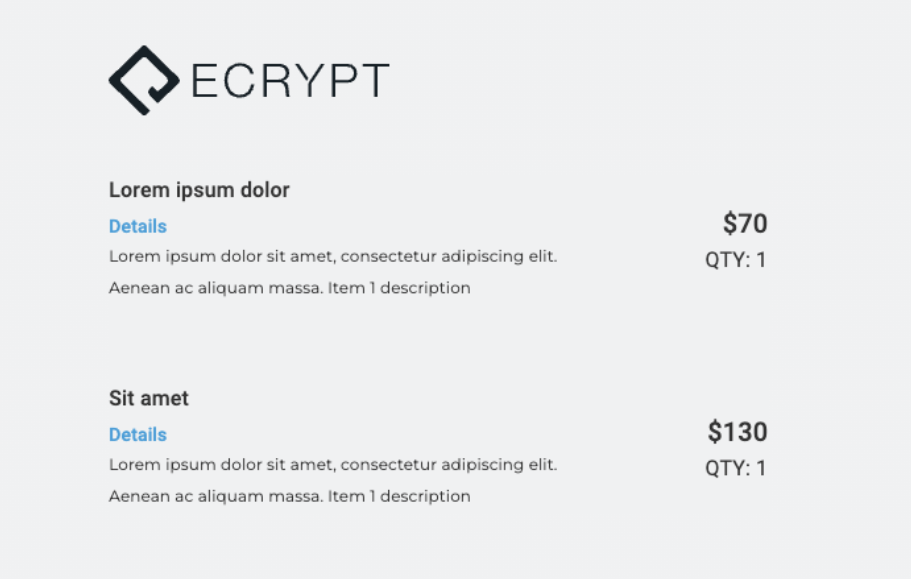 If
If invoice_info object is filled:
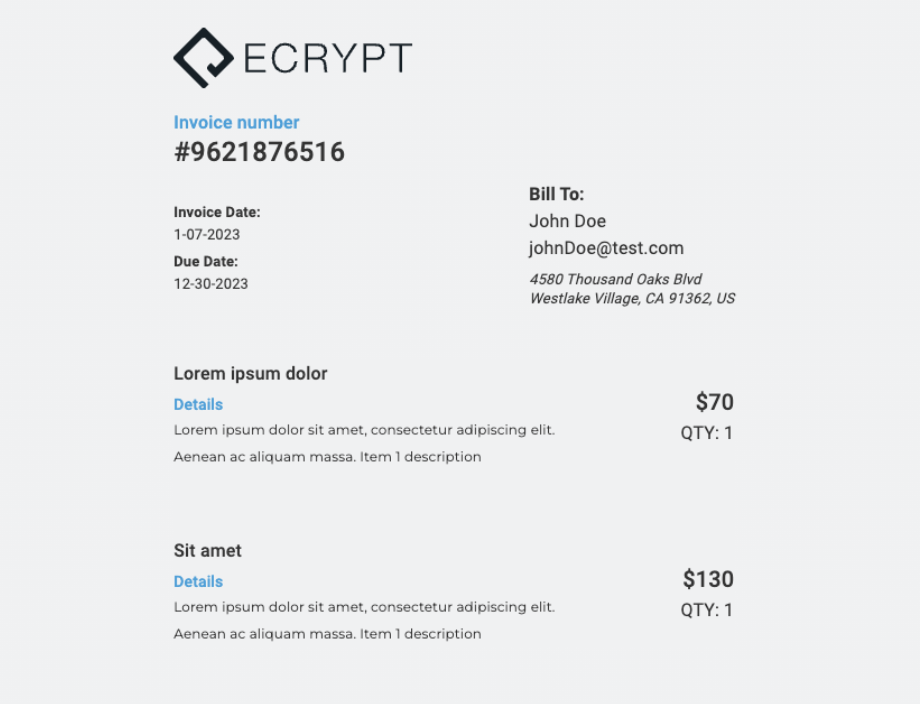
tax
This property is a floating-point number representing the total amount of tax charged on the invoice. Example:discount
This property is a percentage representing the discount rate applied to the invoice. Example:surcharge
This property is a floating-point number representing the total amount of surcharge charged on the invoice. Example:total
This property is a floating-point number representing the total amount due for the invoice. Example:subtotal
This property is a floating-point number representing the subtotal of the invoice before taxes and surcharges are added. Example:collect_shipping
This property is a Boolean value indicating whether or not you want to collect the shipping information of your user. This will add an extra step to the flow. Example:send_receipt
This property is a Boolean value indicating whether or not the invoice should be sent to the customer as a receipt. If true, this will add an email input when collecting your user’s payment information. By default, this is set to false. Example:thank_you_url
This property refers to a string value that designates a URL for a button on the Order confirmation page. This allows users to easily navigate back to any link that is passed to the button. Example: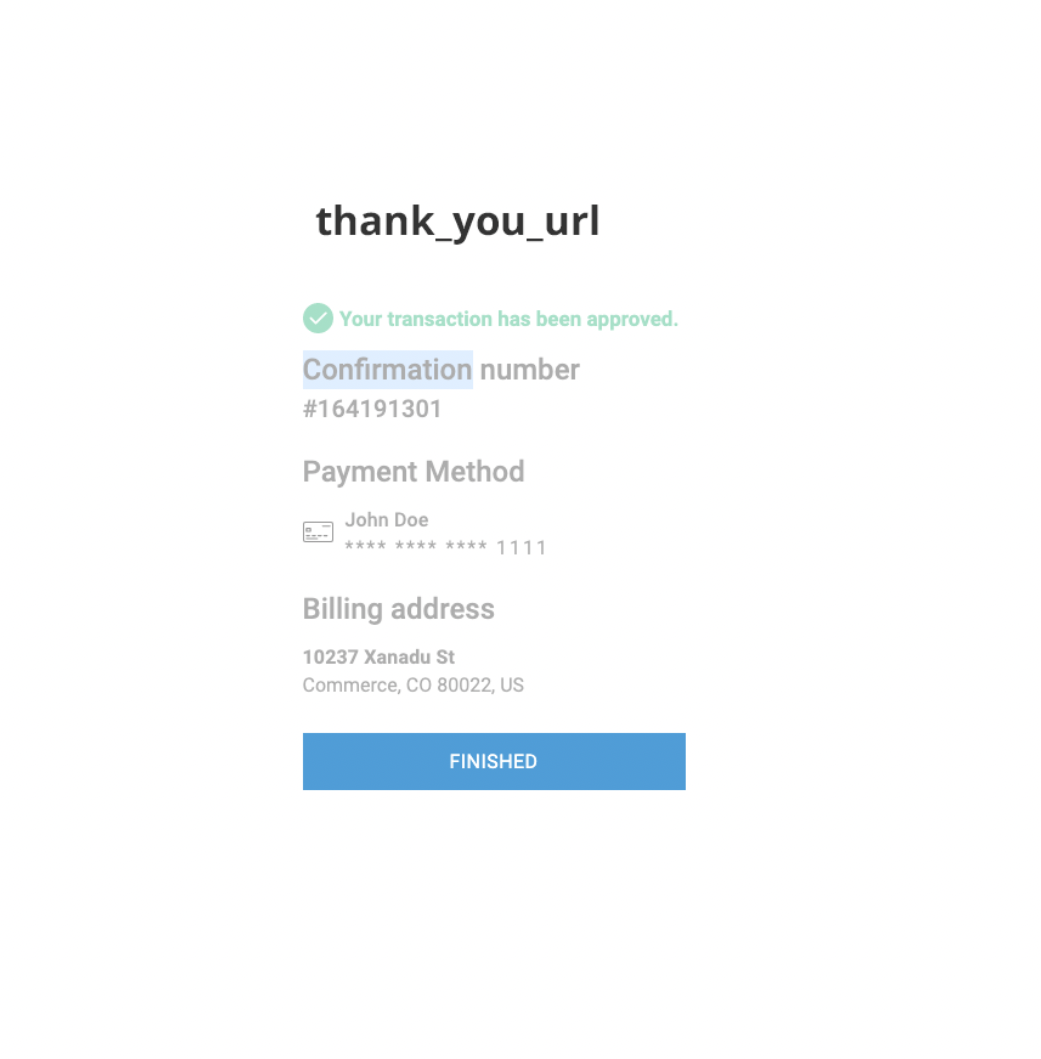
customer_info
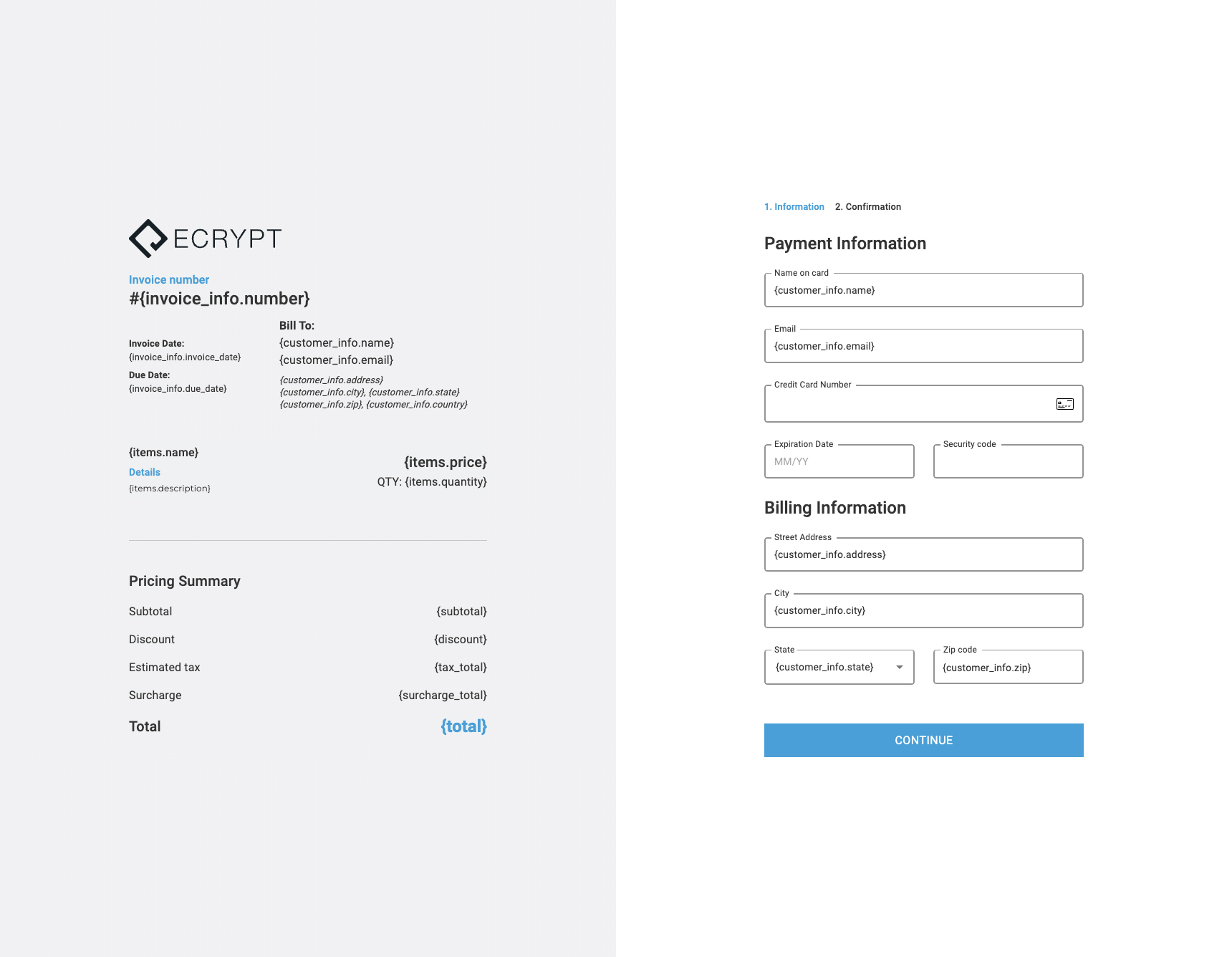
This object contains details about the customer who is receiving the invoice. Ifinvoice_info is left null, this information will not be displayed in the UI but will be used to prefill user info in the Payment / Billing inputs.
name(string): The customer’s name.email(string): The customer’s email address.address(string): The customer’s street address.city(string): The customer’s city.state(string): The customer’s state.zip(string): The customer’s ZIP or postal code.country(string): The customer’s country.
items
This property is an array of objects representing the items included in the invoice. Each item object contains the following properties:name(string): The name of the item.price(number): The price of the item.quantity(number): The quantity of the item.description(string): A description of the item.
Appearance
The Appearance object includes various properties that define the appearance of the invoice and form. Each property is optional and should be a string representing a color code or a theme. Supported formats for color codes:- Hexadecimal Format:
#000000 - RGB Format:
rgb(0, 0, 0) - RGBA Format:
rgba(0, 0, 0, 1) - HSL Format:
hsl(0, 0%, 0%) - HSLA Format:
hsla(0, 0%, 0%, 1) - Named Colors:
black
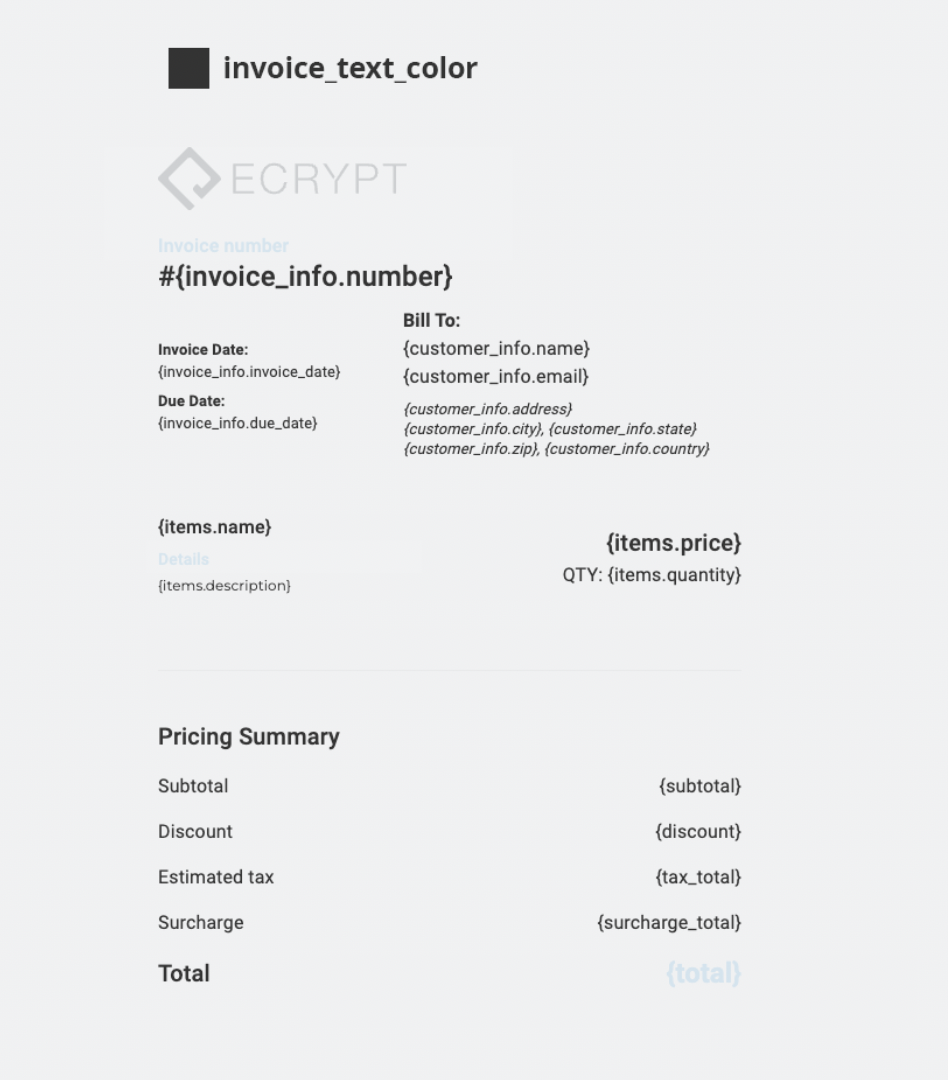
invoice_text_color
invoice_text_color (string): The color of the text in the invoice UI.
Example:
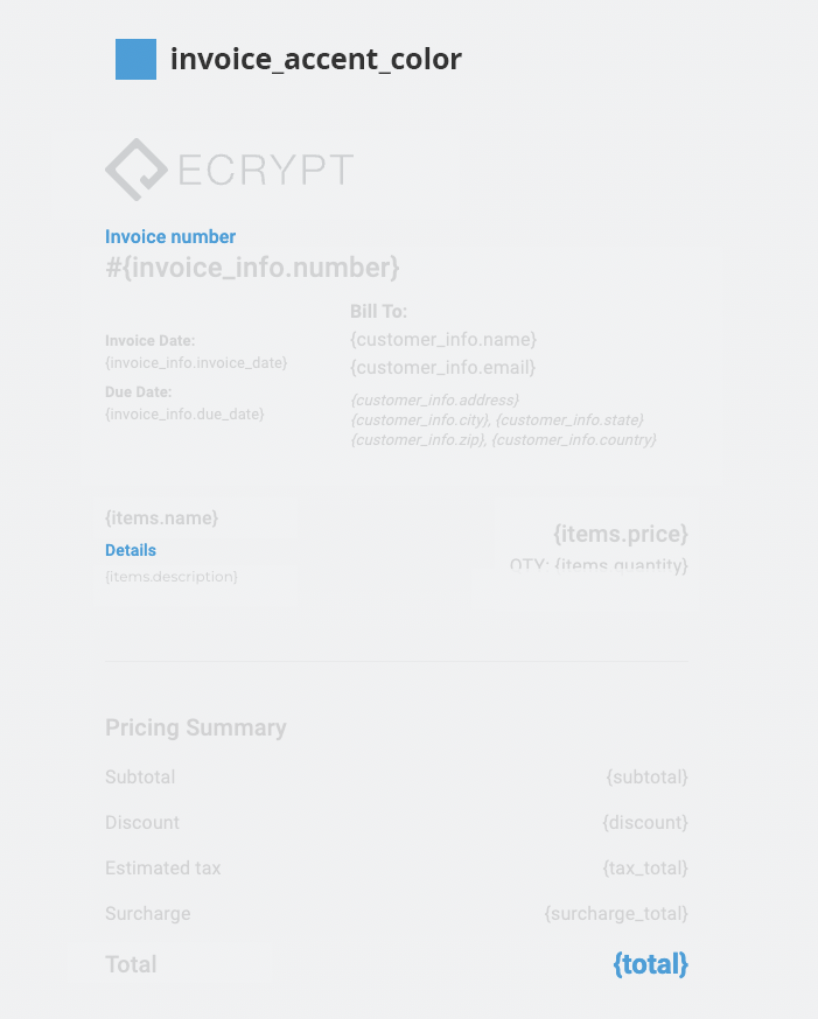
invoice_accent_color
invoice_accent_color (string): The accent color in the invoice UI.
Example:
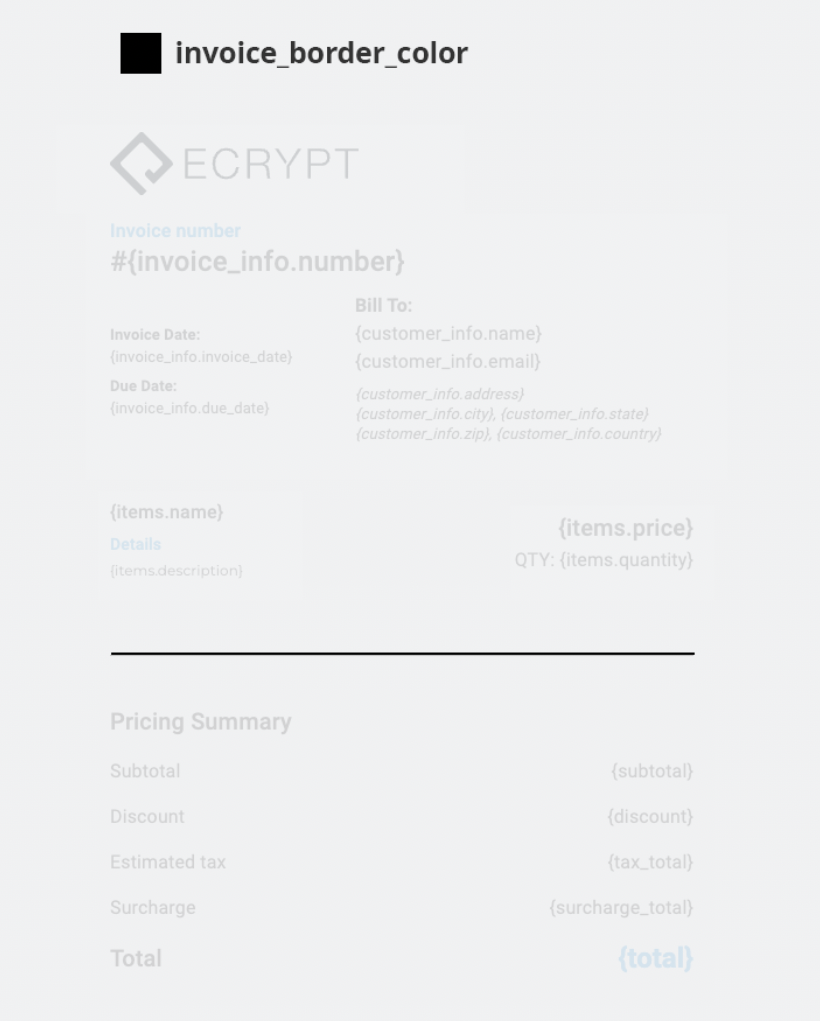
invoice_border_color
invoice_border_color (string): The color of the borders in the invoice UI.
Example:
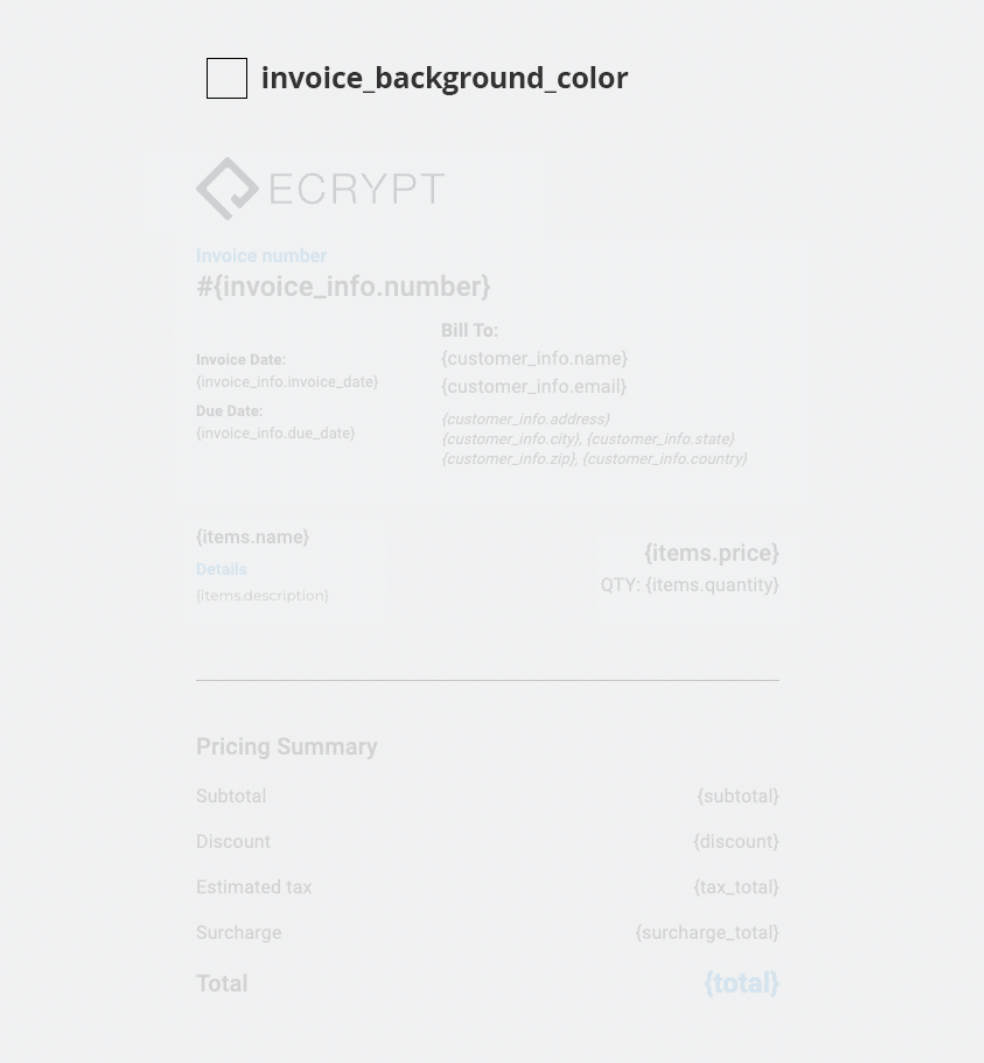
invoice_background_color
invoice_background_color (string): The background color of the invoice UI.
Example:
invoice_button_text_color
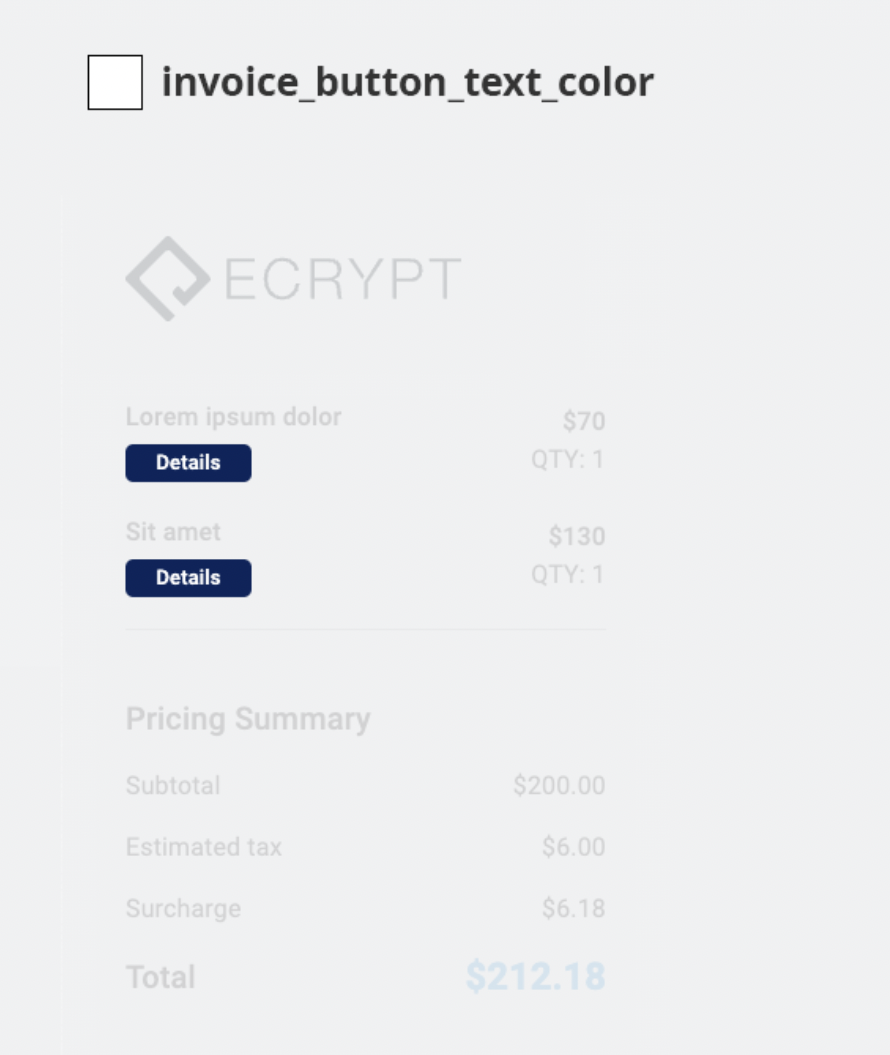
invoice_button_text_color (string): The color of the text on the invoice button on tablet and mobile view.
Example:
invoice_button_background_color
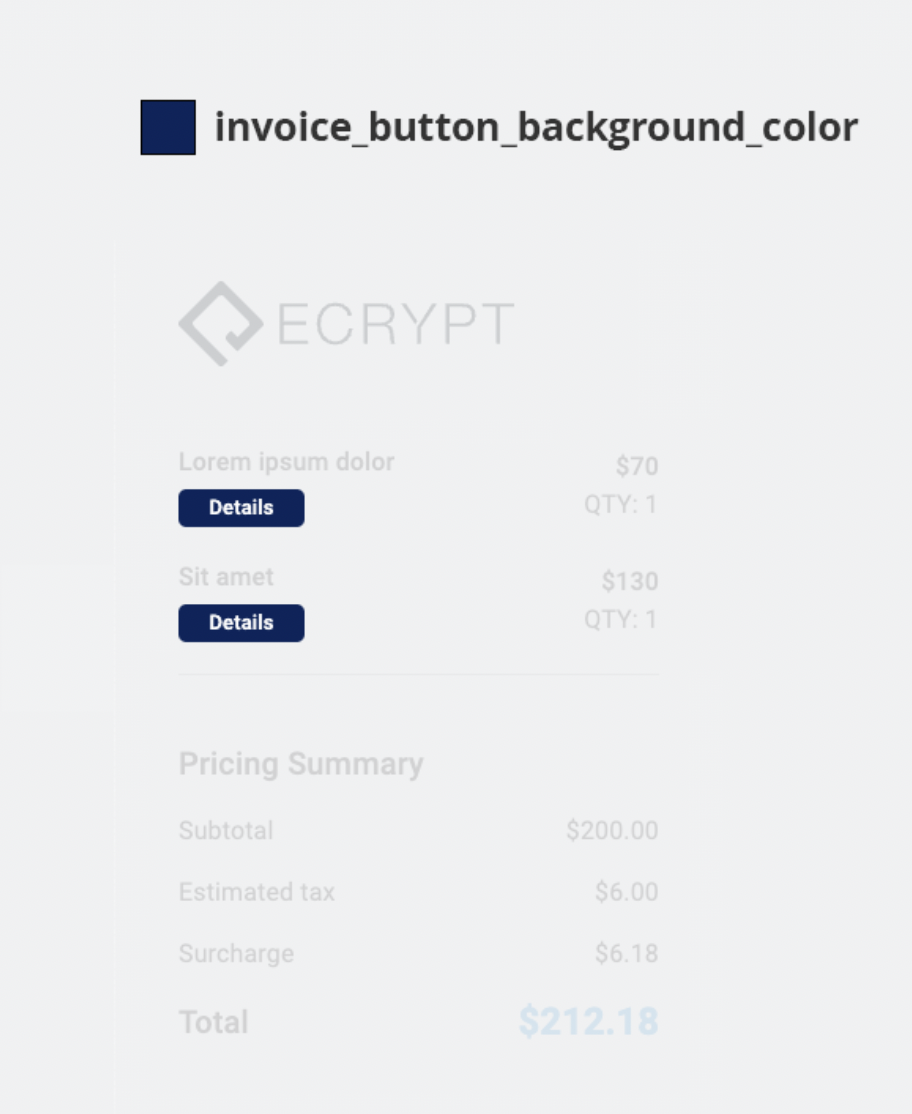
invoice_button_background_color (string): The background color of the invoice button on tablet and mobile view.
Example:
invoice_icon_theme
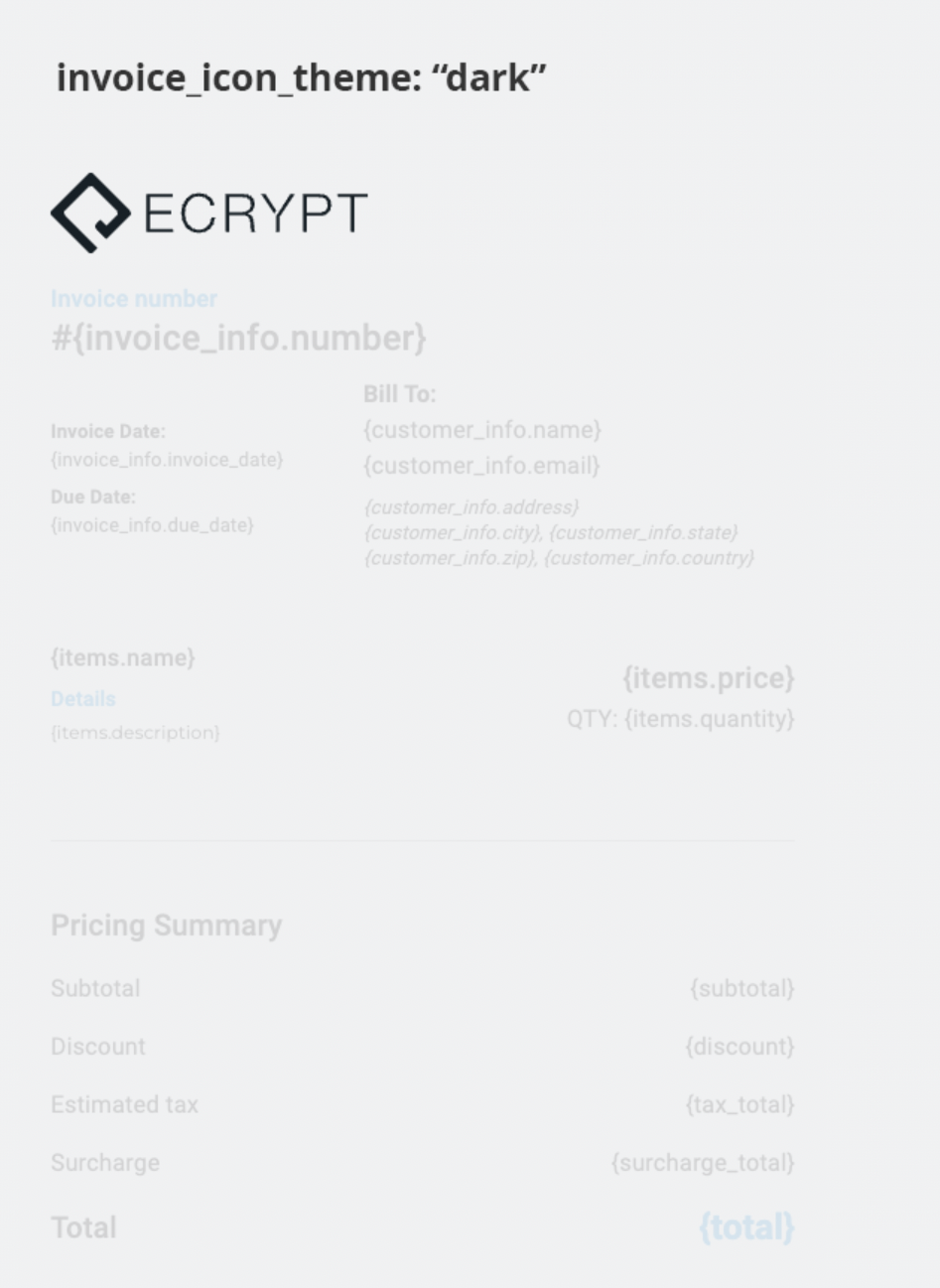
invoice_icon_theme (string): This changes the default ecrypt logo from dark or light.
Only two values are accepted: dark or light.
Example:
form_icon_theme
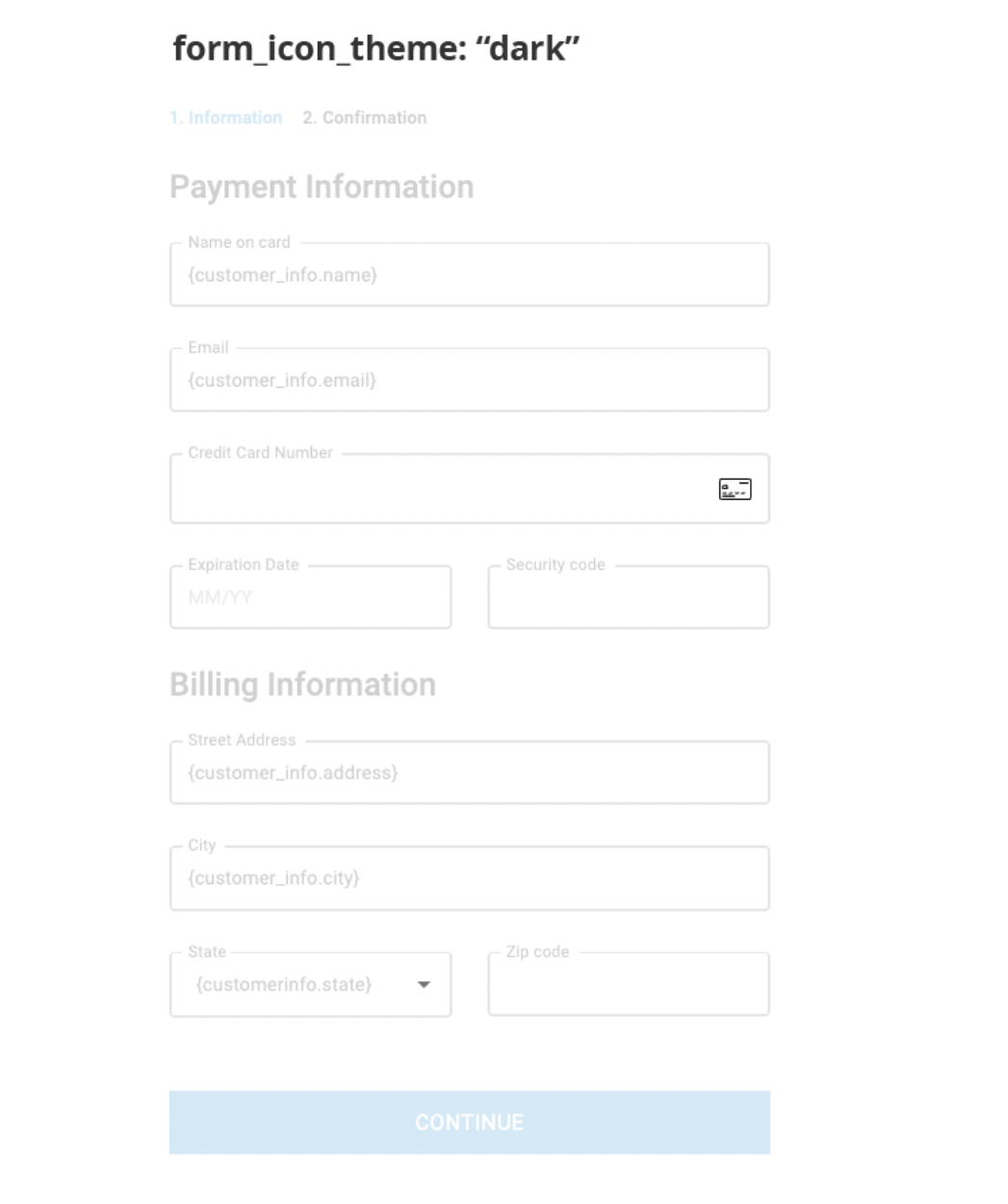
form_icon_theme (string): Changes the default credit card icon and down arrow icon to dark or light.
Only two values are accepted: dark or light.
Example:
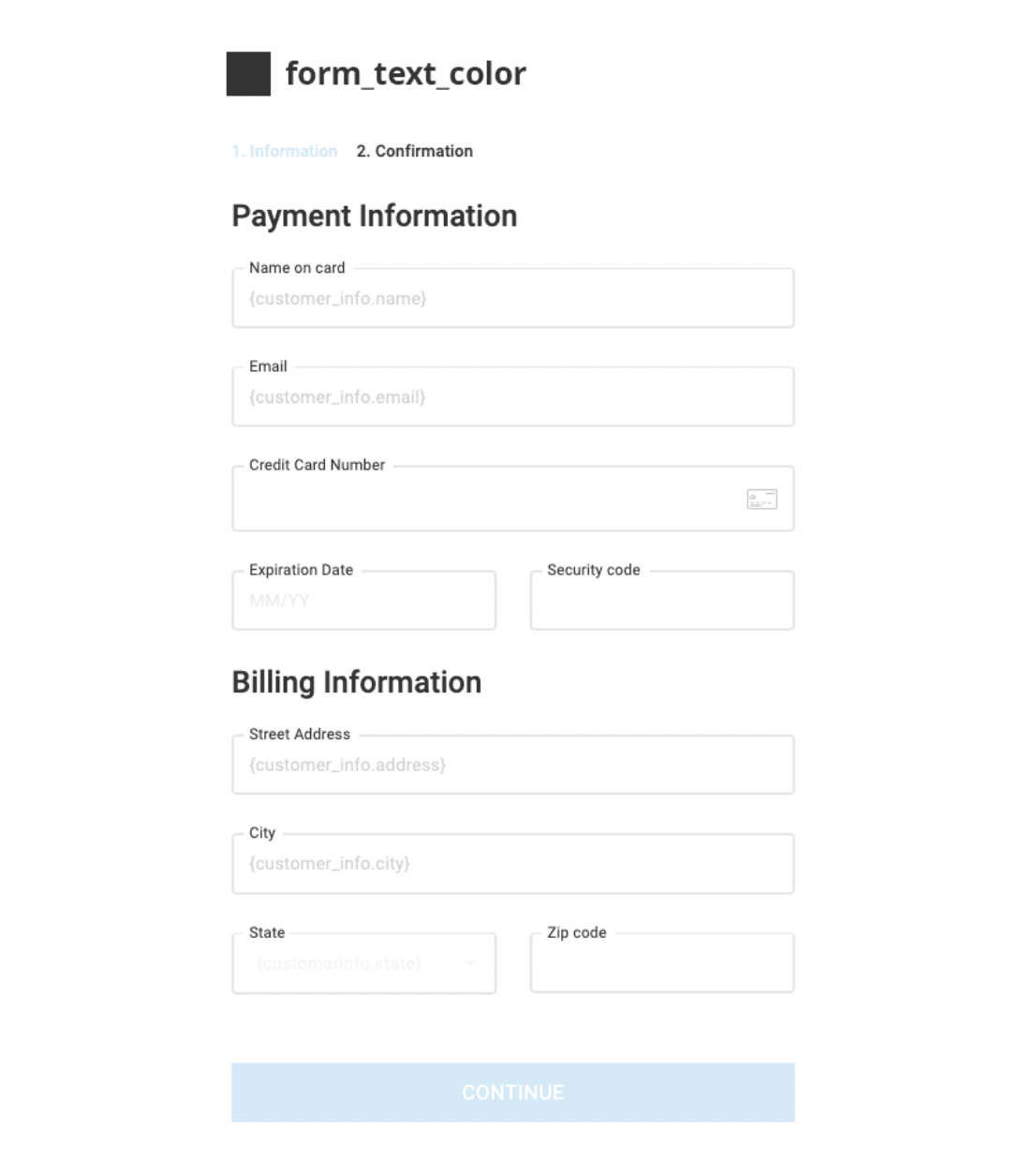
form_text_color
form_text_color (string): The color of the text in the form UI.
Example:
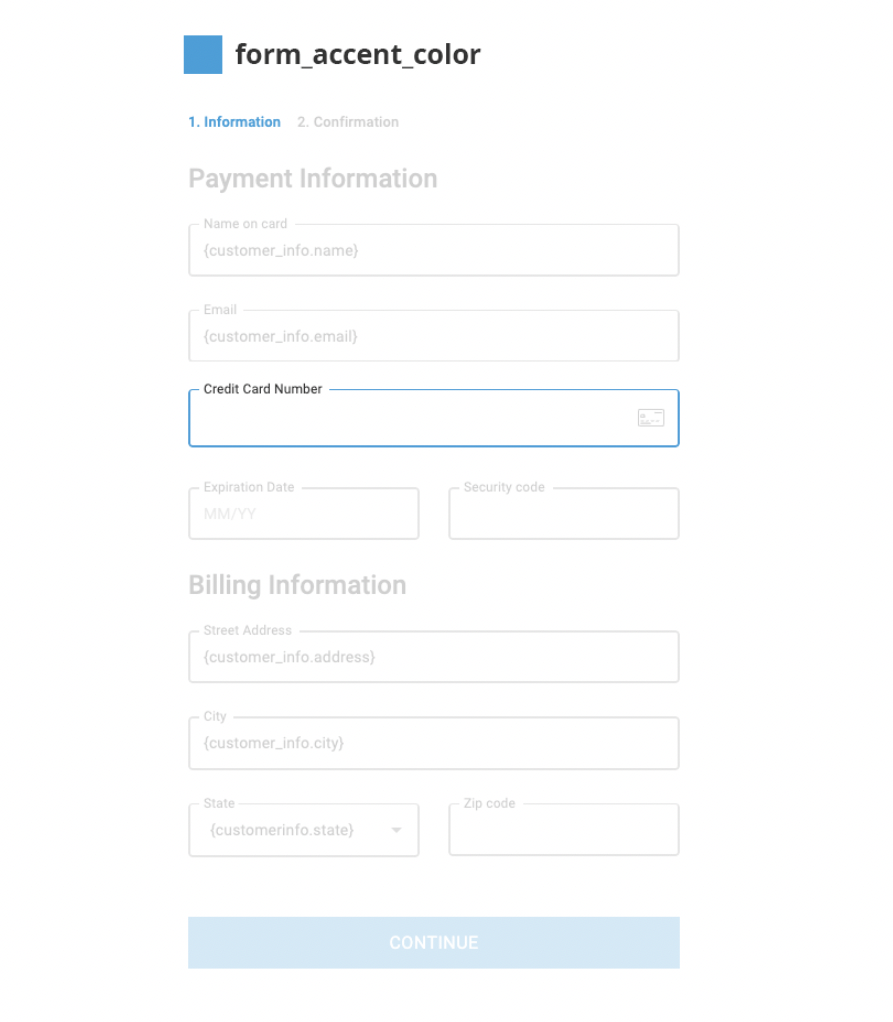
form_accent_color
form_accent_color (string): The accent color in the form UI.
Example:
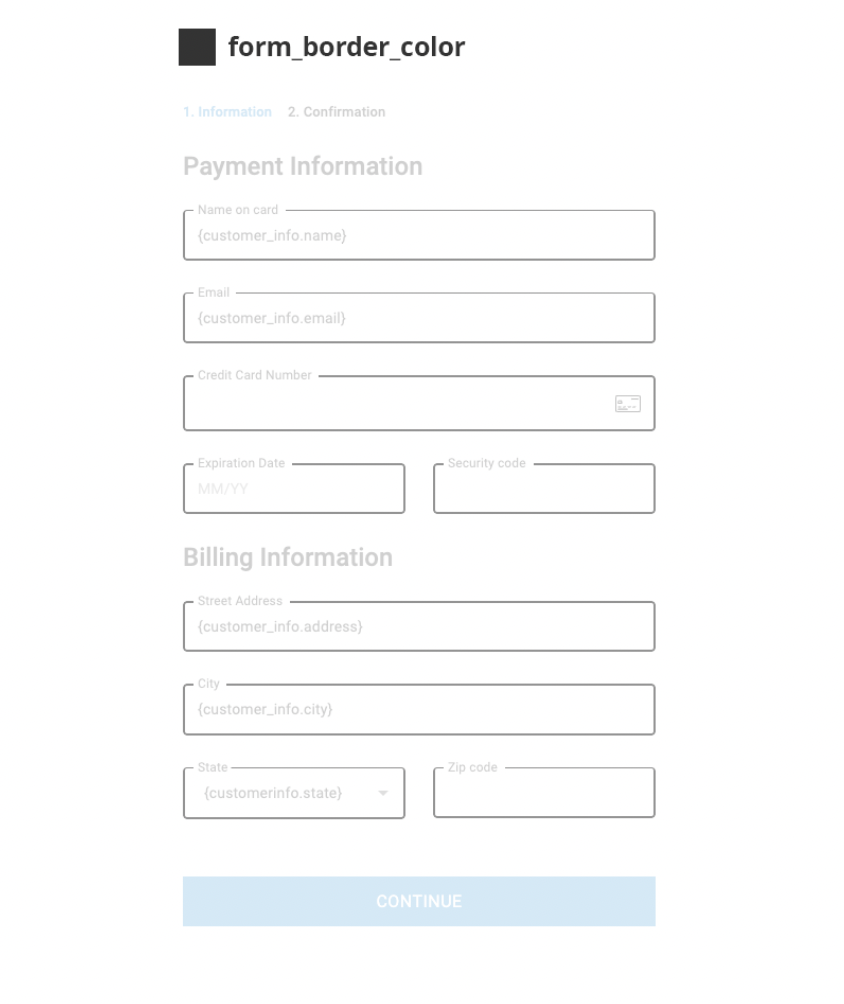
form_border_color
form_border_color (string): The color of the borders in the form UI.
Example:
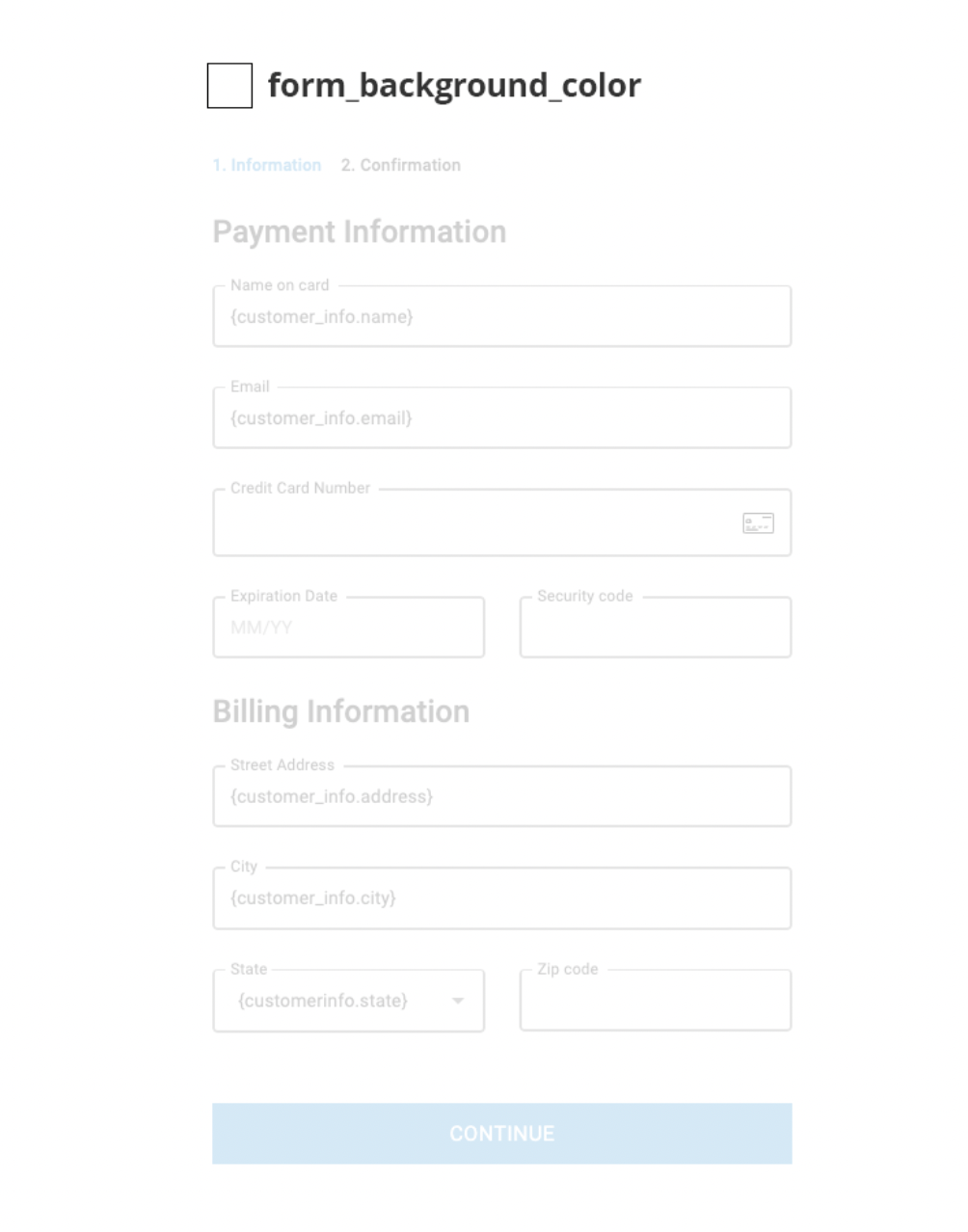
form_background_color
form_background_color (string): The background color of the form UI.
Example:
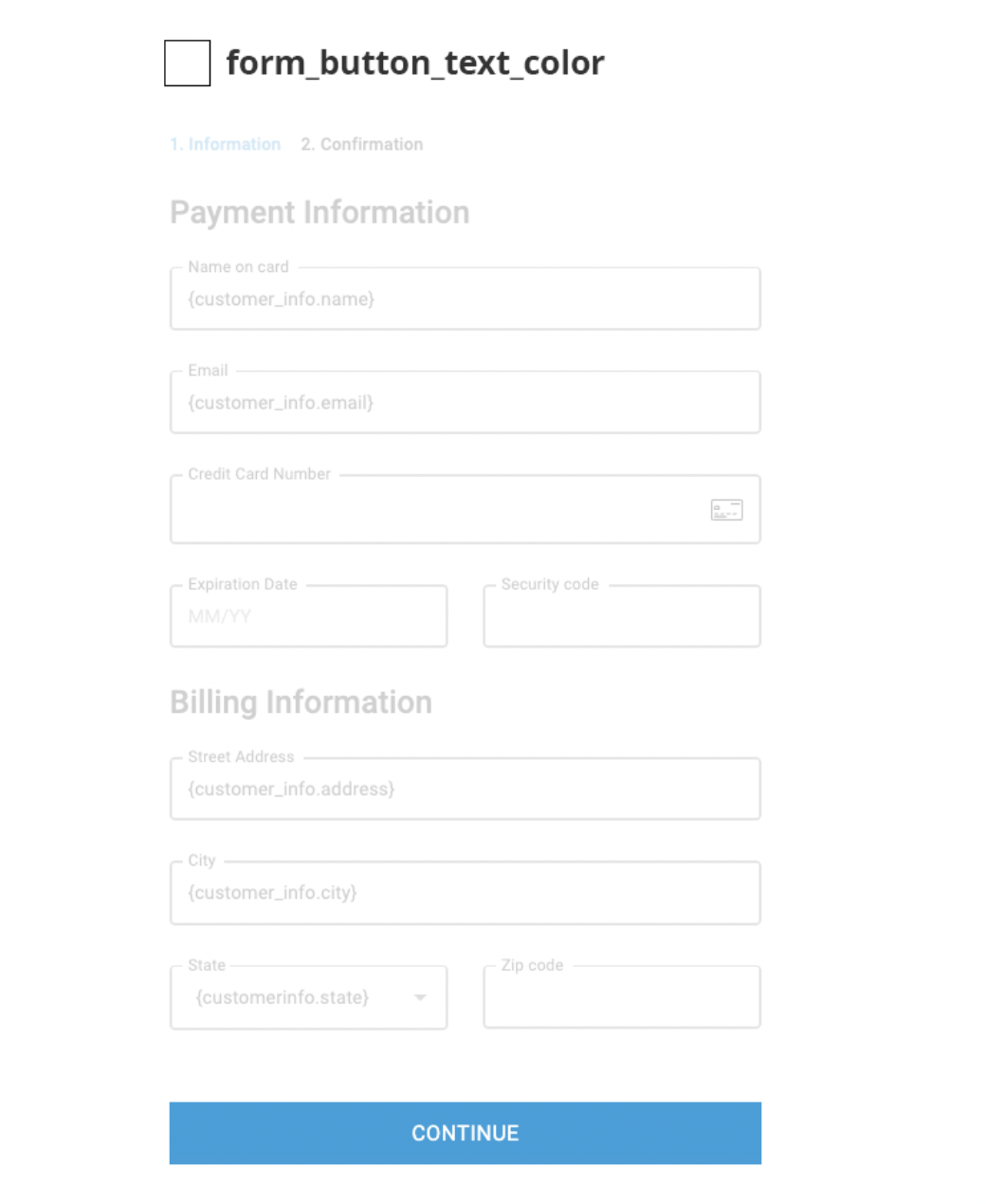
form_button_text_color
form_button_text_color (string): The color of the text on the form button.
Example:
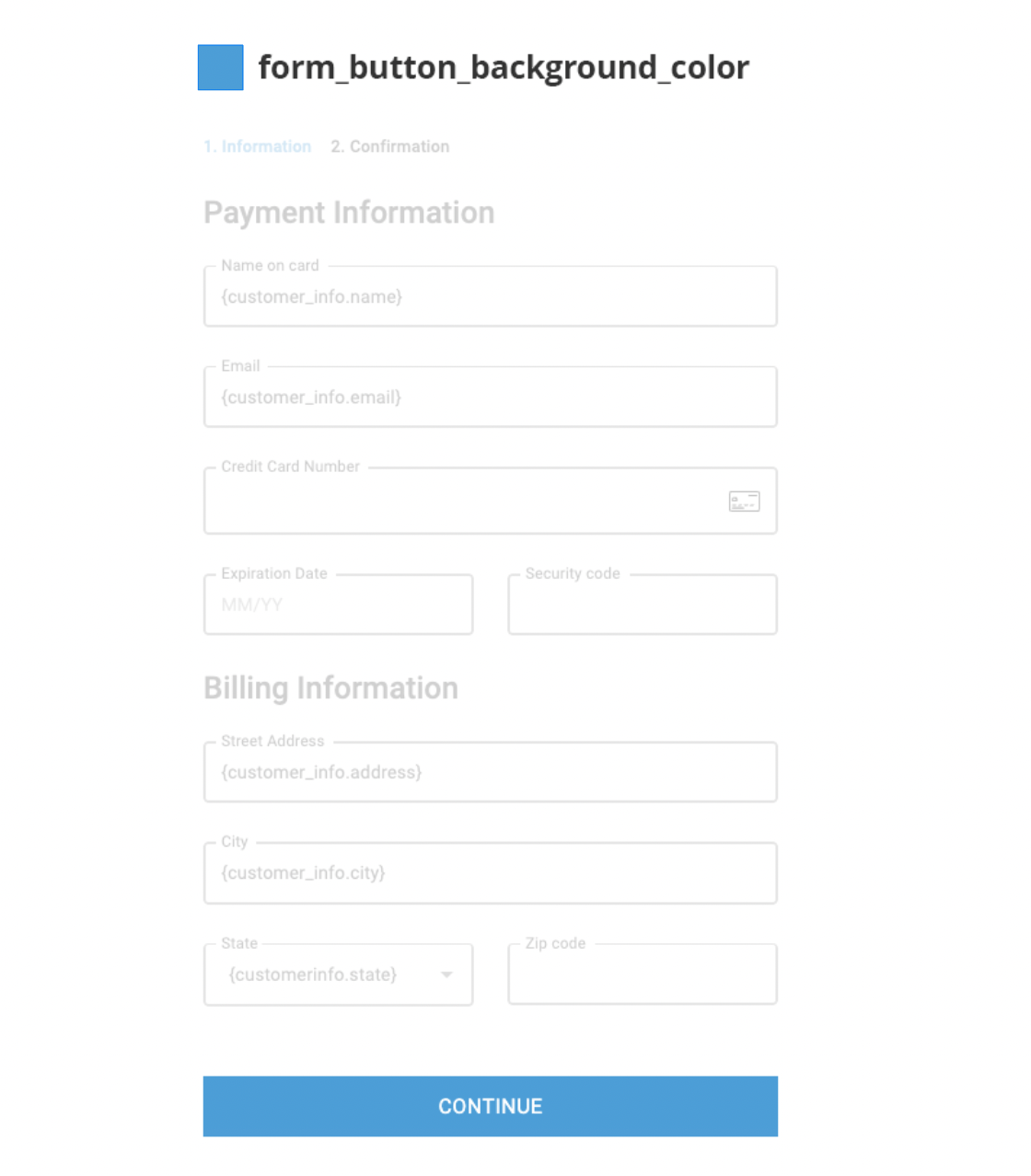
form_button_background_color
form_button_background_color (string): The background color of the form button.
Example:
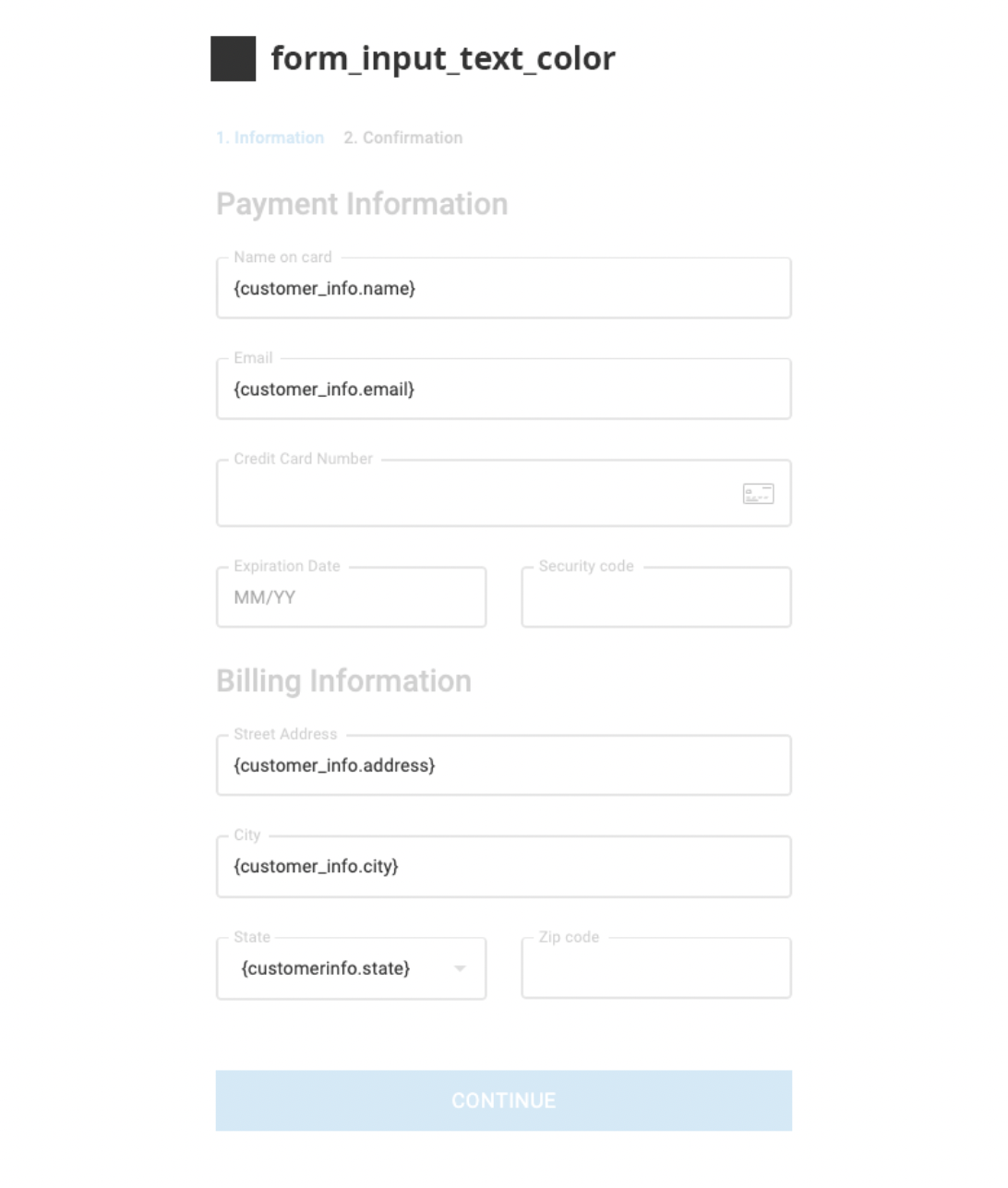
form_input_text_color
form_input_text_color (string): The color of the text in the form input fields.
Example:
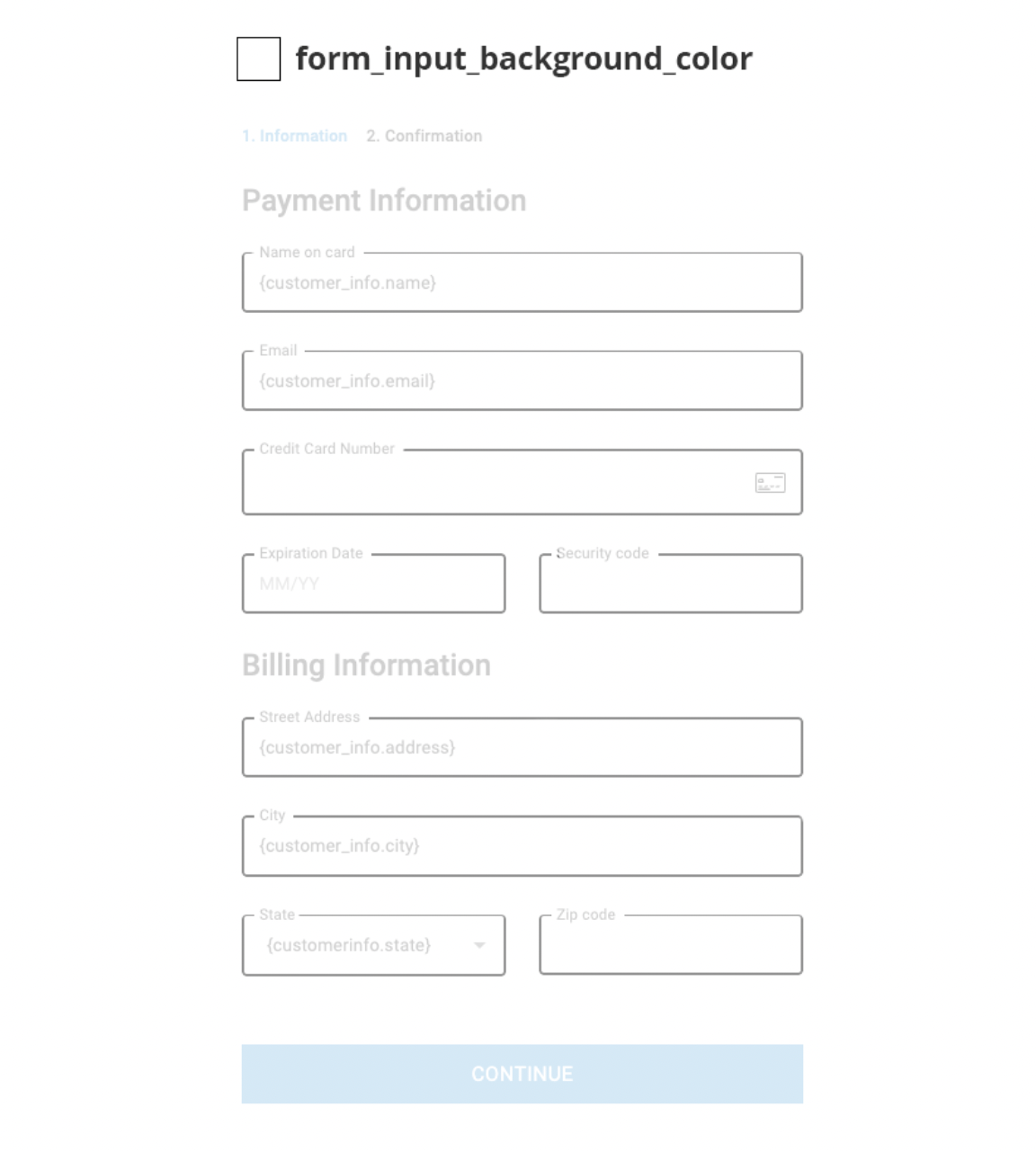
form_input_background_color
form_input_background_color (string): The background color of the form input fields.
Example:
alert_color
alert_color (string): The color of the alert message.
Example:
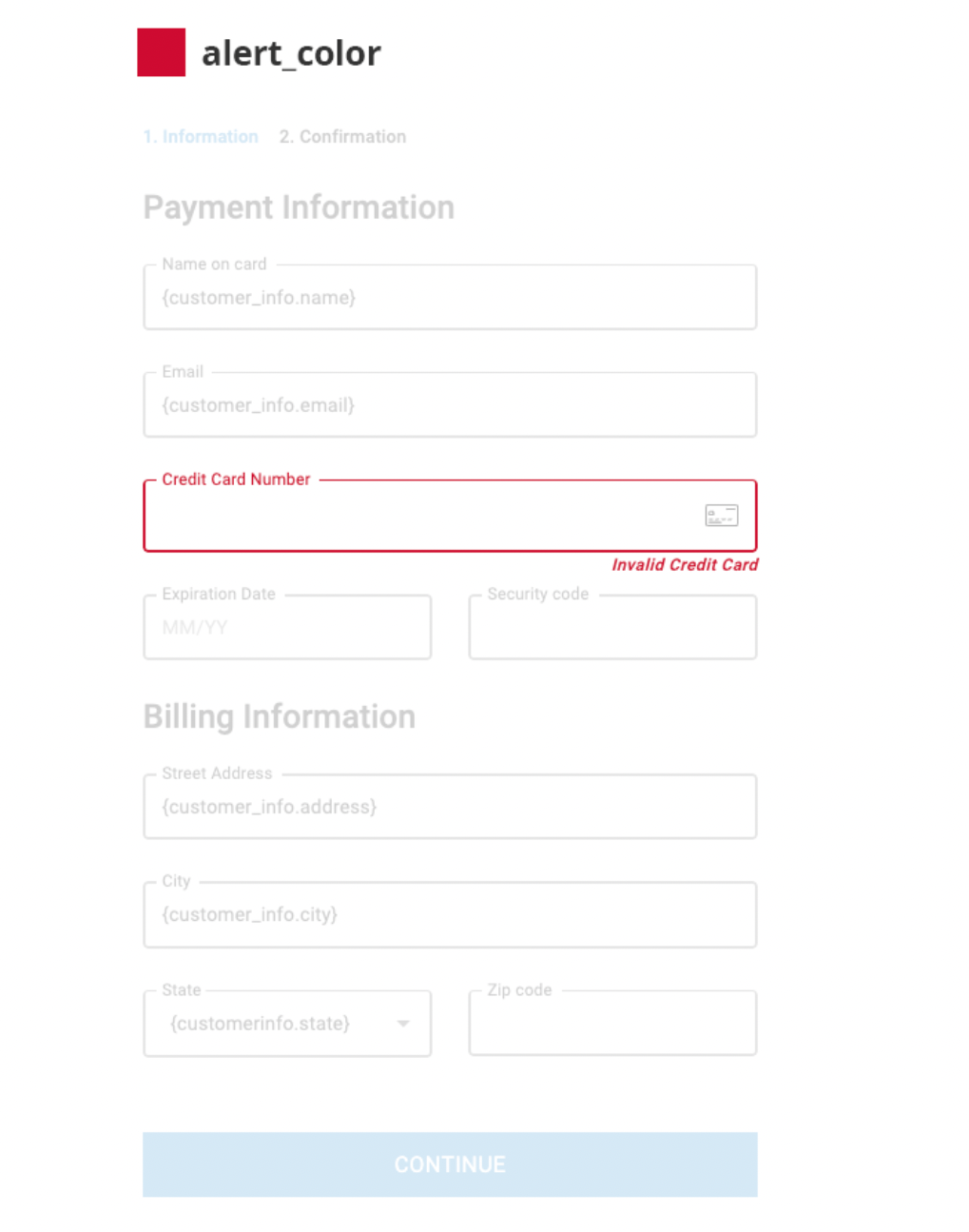
input_variant
input_variant (string): The variant of the input field.
Only accepted values: outlined, filled, or standard.
Example:

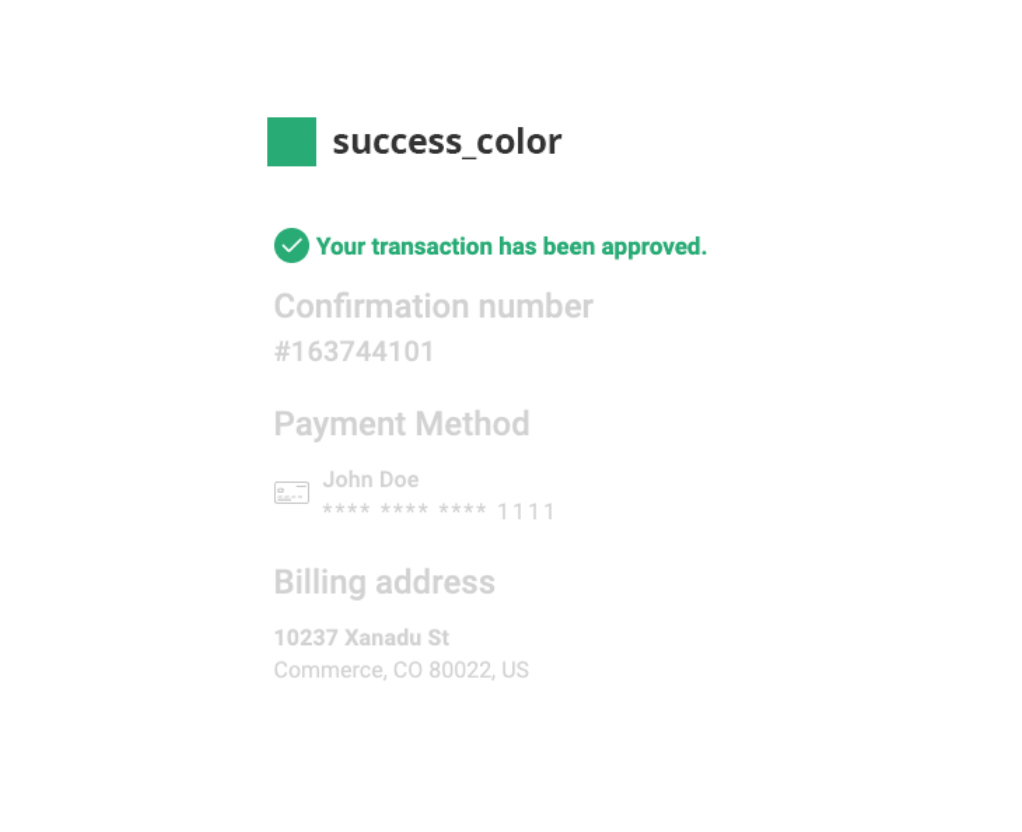
success_color
success_color (string): The color of the success message in the order confirmation.
Example:
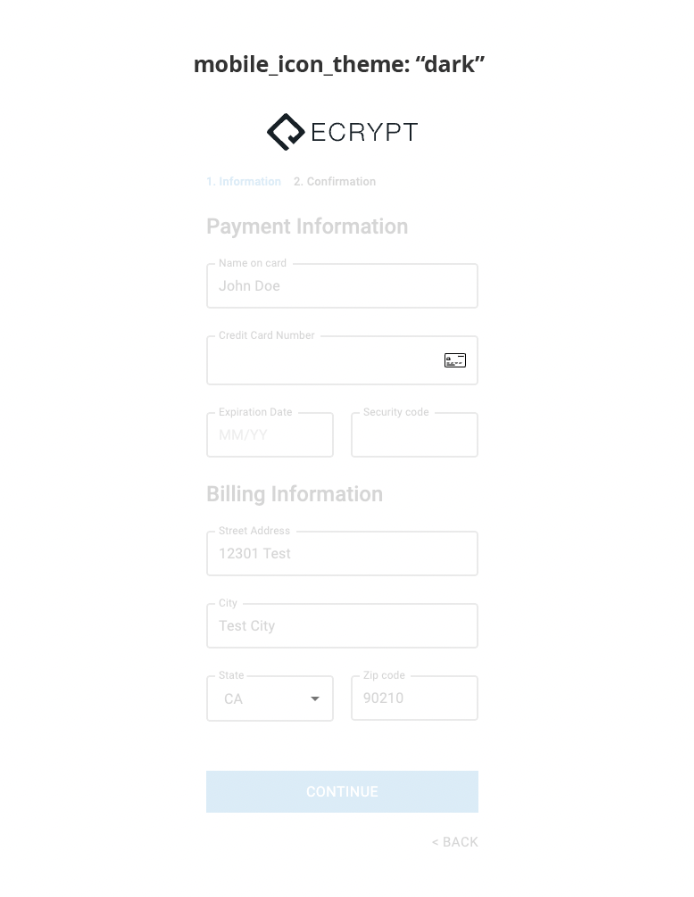
mobile_icon_theme
mobile_icon_theme (string): The theme of the icons used in the mobile UI.
Only two values are accepted: dark or light.
Example:
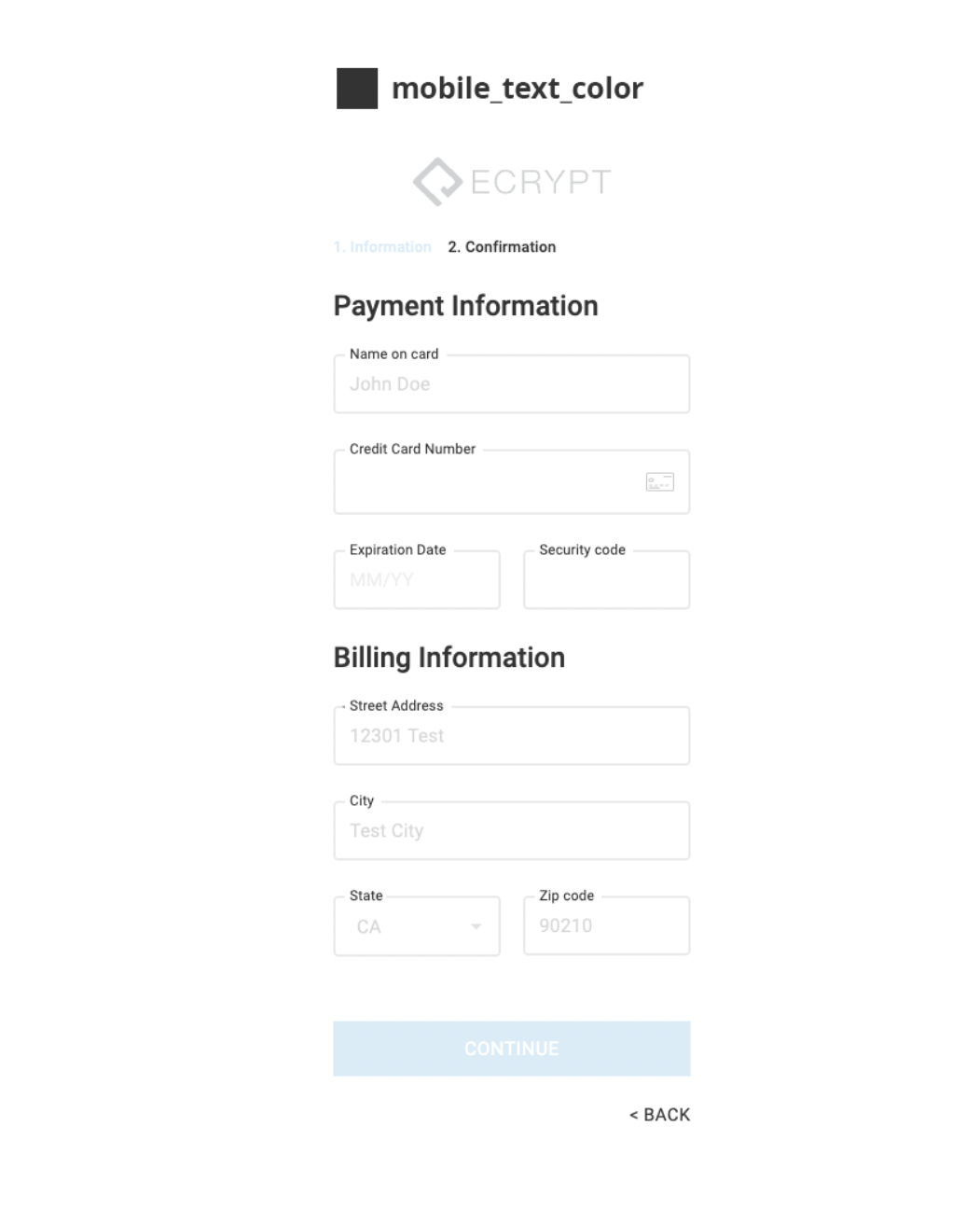
mobile_text_color
mobile_text_color (string): The color of the text in the mobile UI.
Example:
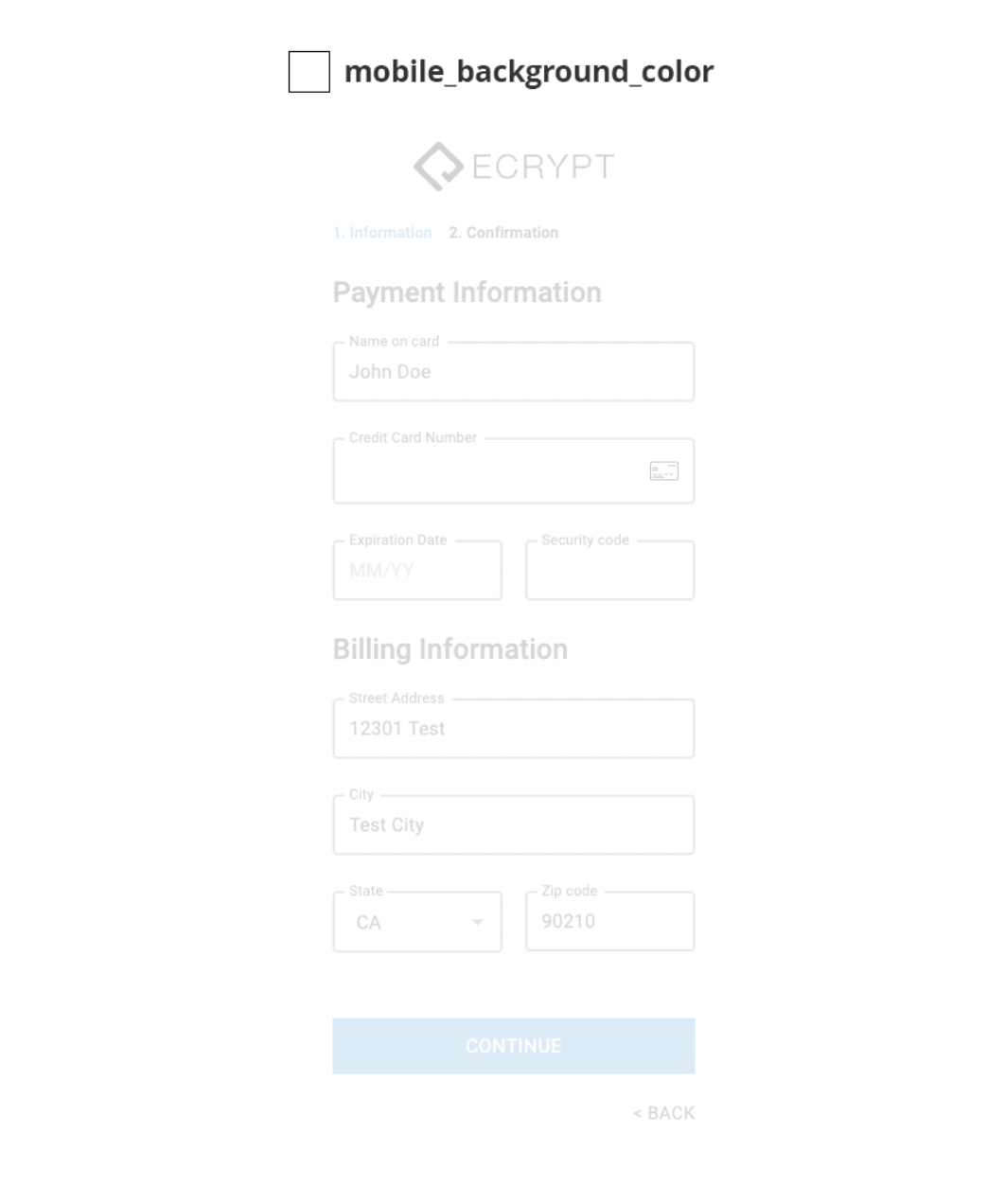
mobile_background_color
mobile_background_color (string): The background color of the mobile UI.
Example:
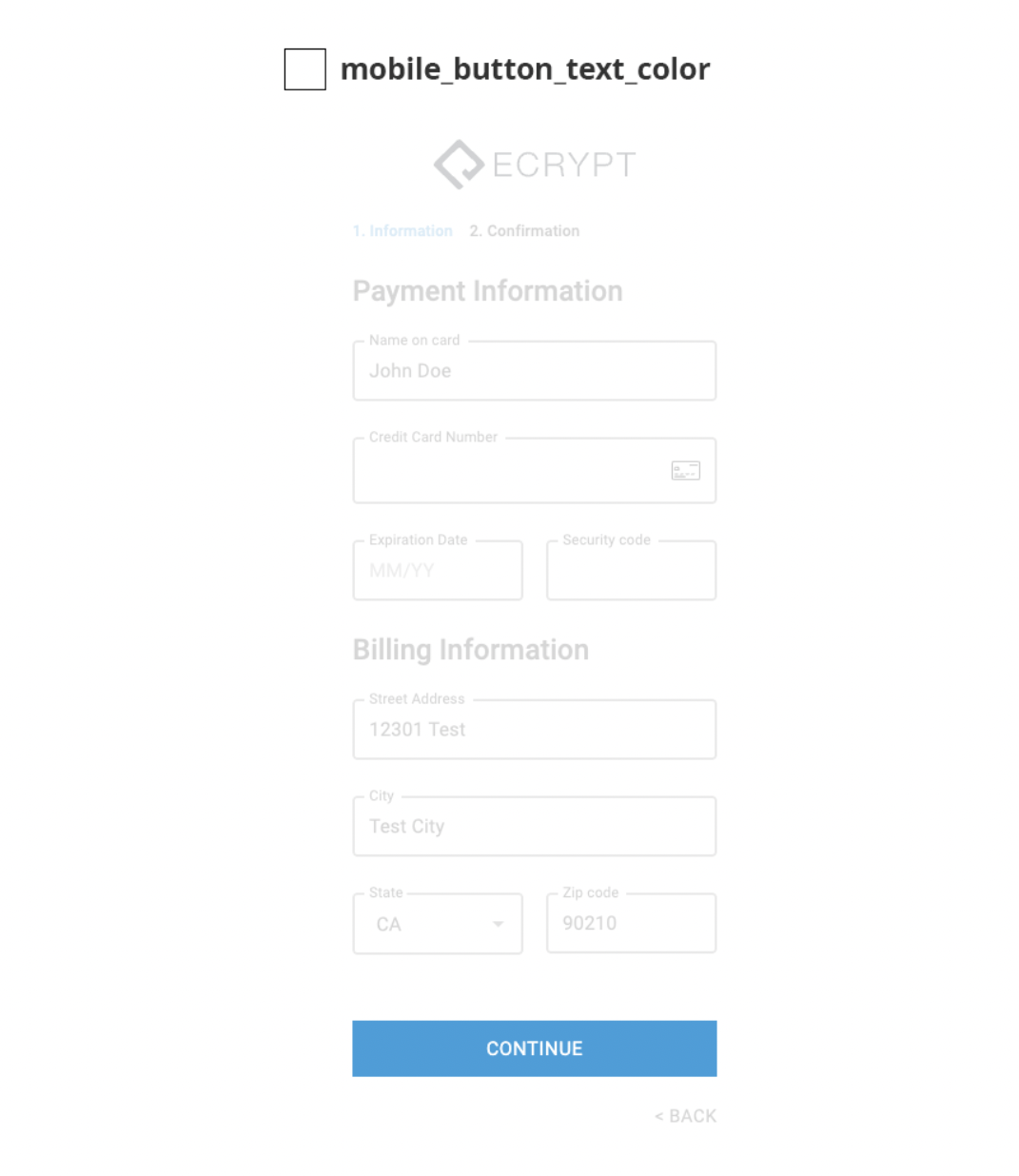
mobile_button_text_color
mobile_button_text_color (string): The color of the text on the mobile button.
Example:
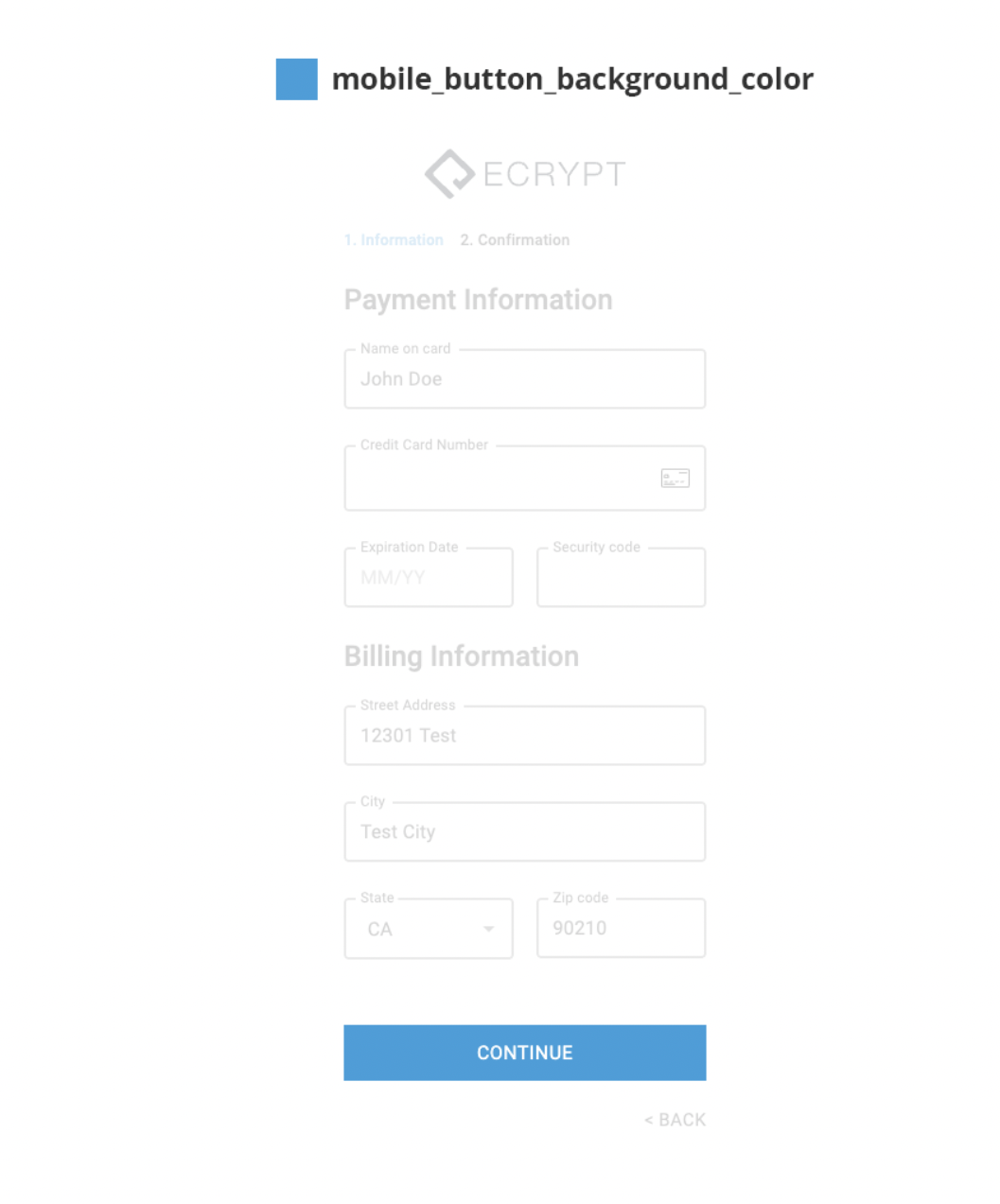
mobile_button_background_color
mobile_button_background_color (string): The background color of the mobile button.
Example:
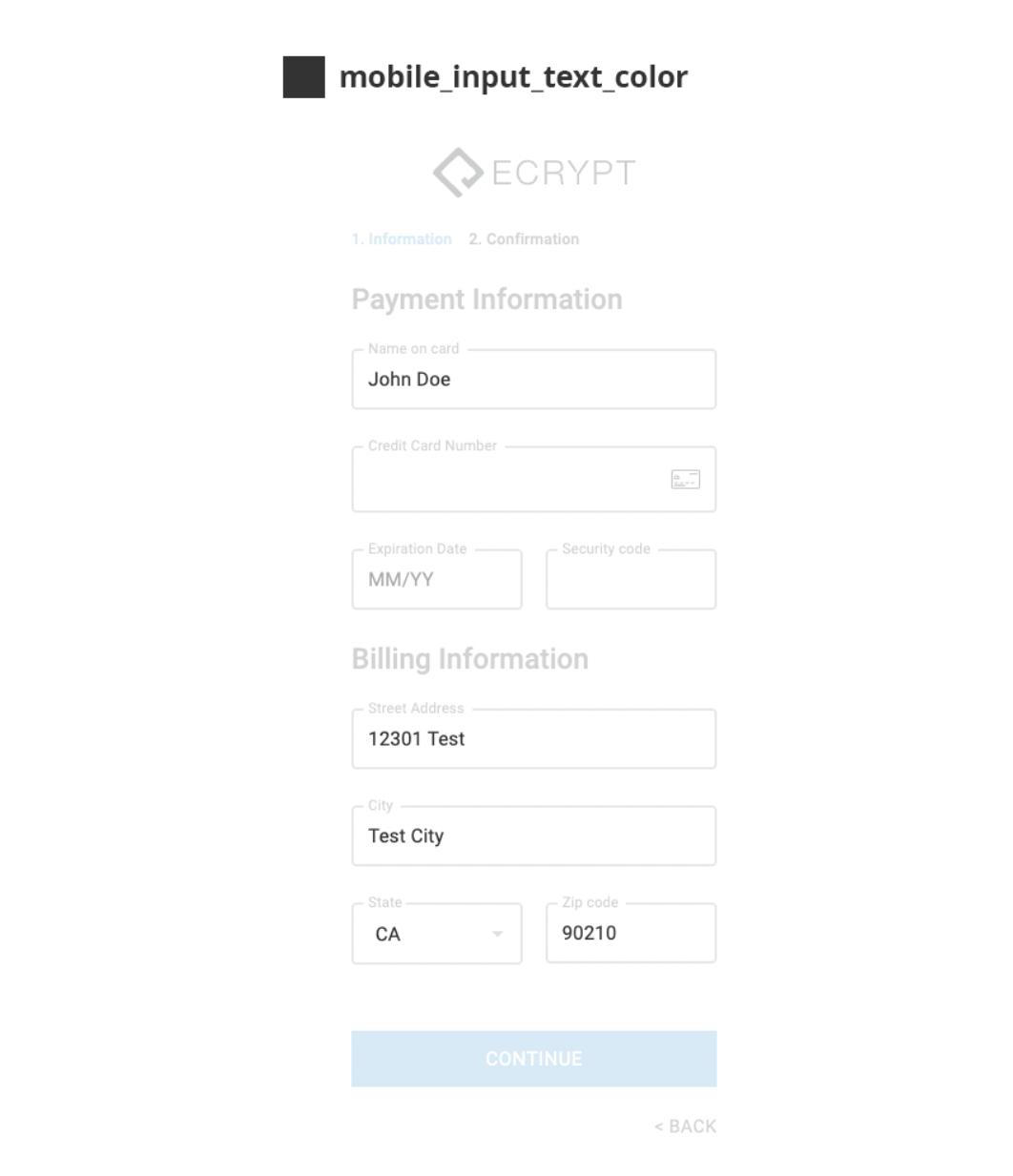
mobile_input_text_color
mobile_input_text_color (string): The color of the text in the mobile input fields.
Example:
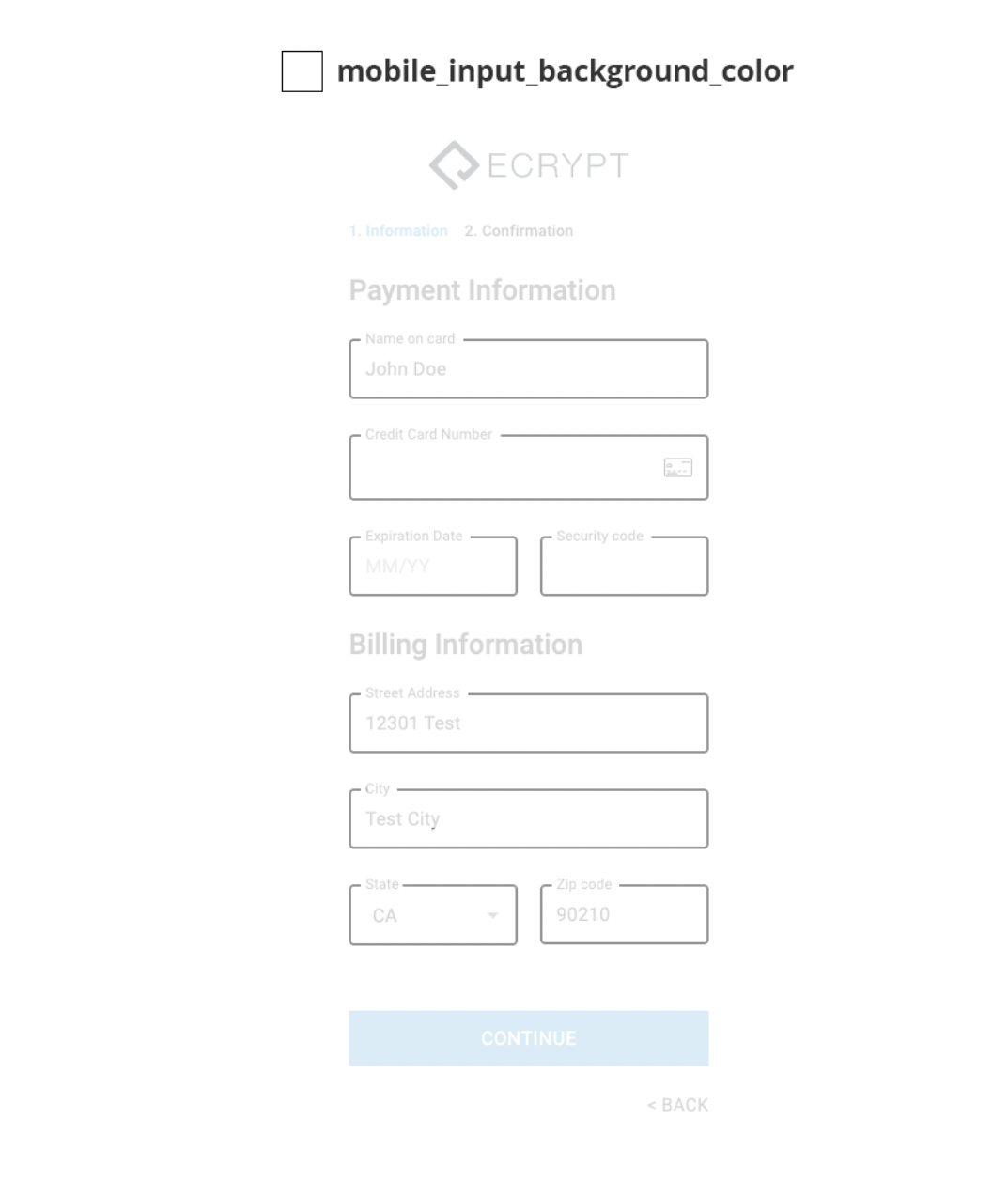
mobile_input_background_color
mobile_input_background_color (string): The background color of the mobile input fields.
Example:
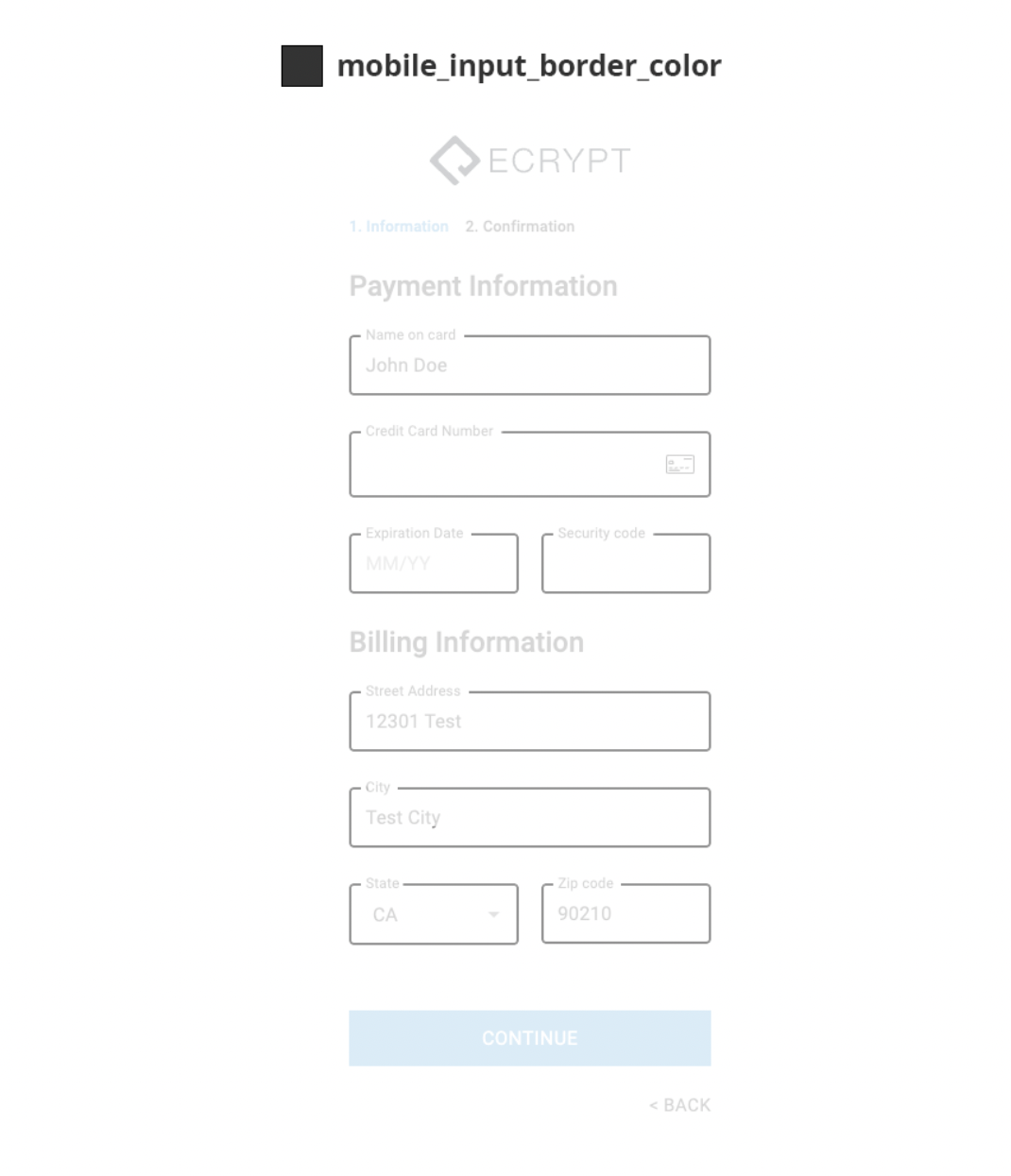
mobile_input_border_color
mobile_input_border_color (string): The color of the border in the mobile input fields.
Example:
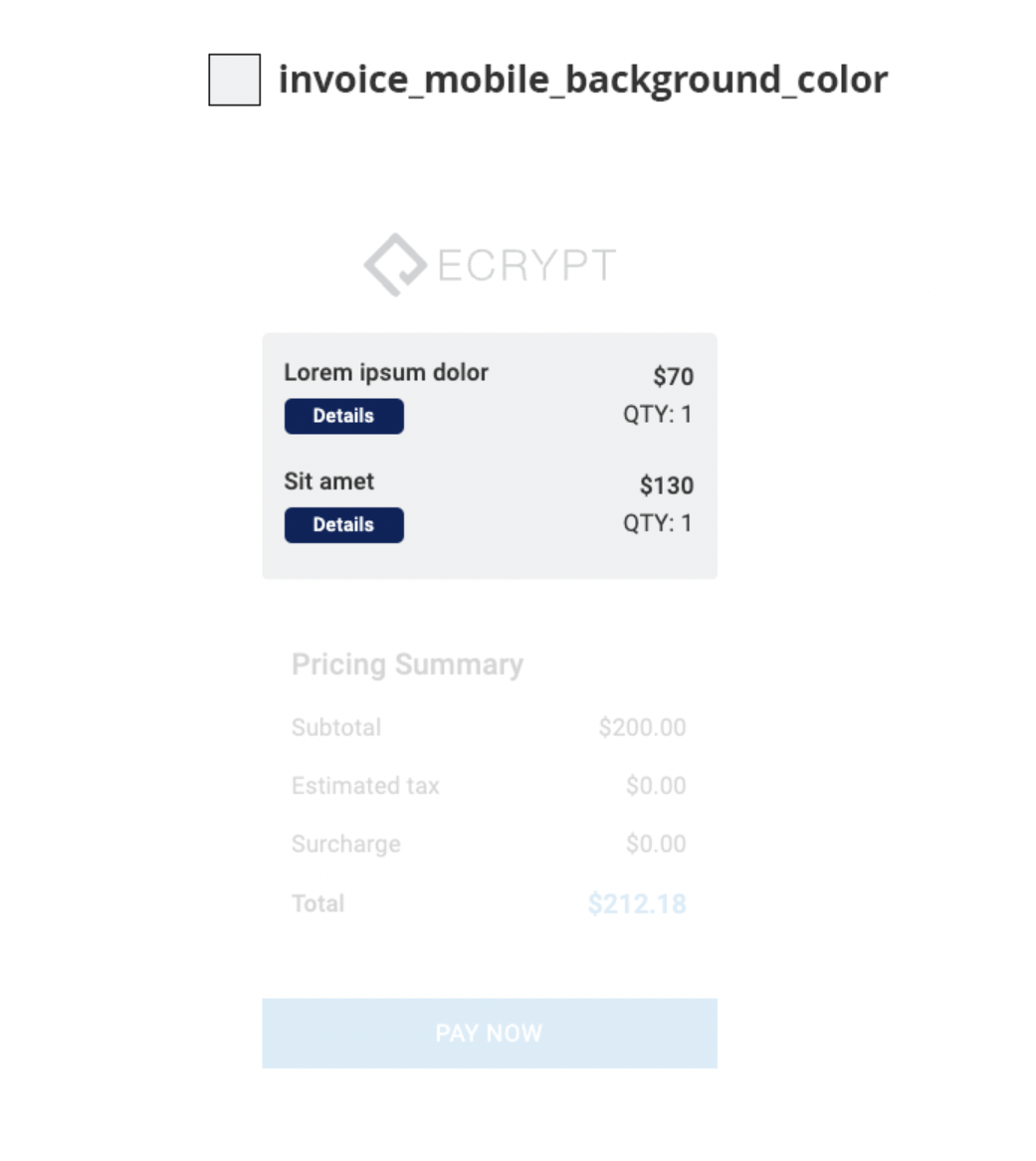
invoice_mobile_background_color
invoice_mobile_background_color (string): The background color of the invoice in the mobile UI.
Example:
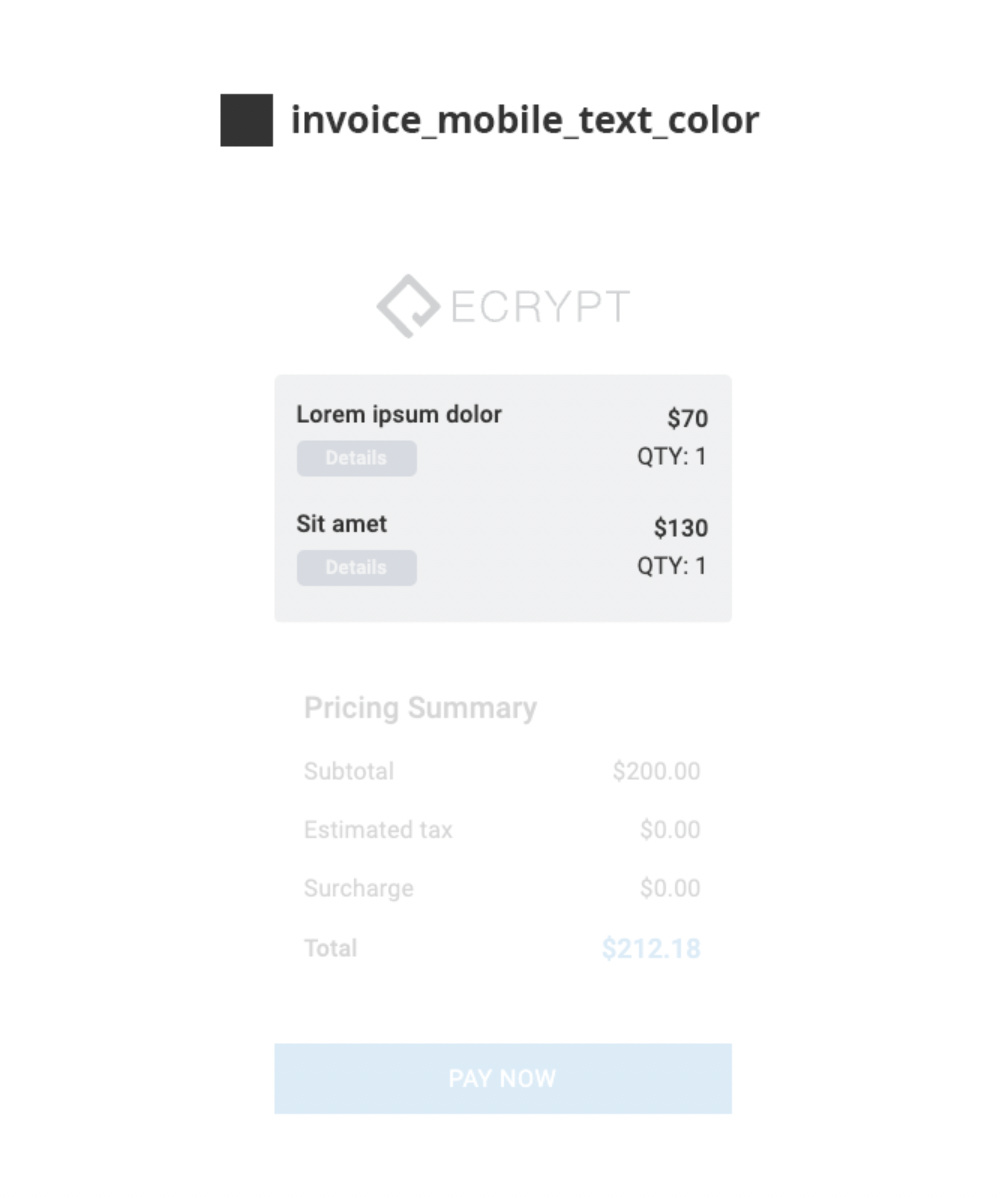
invoice_mobile_text_color
invoice_mobile_text_color (string): The color of the text in the invoice in the mobile UI.
Example:
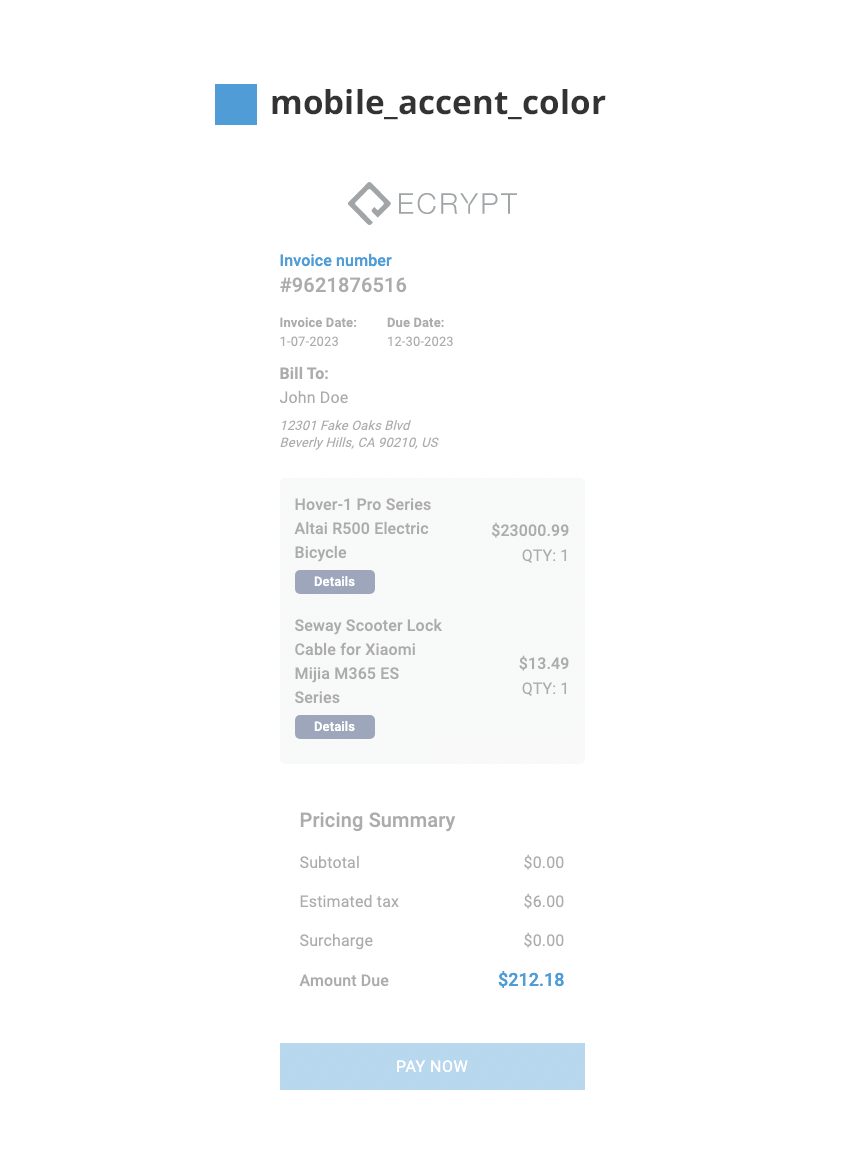
mobile_accent_color
mobile_accent_color (string): The accent color in the mobile UI.
Example:
Parent postMessage Events
The dynamic checkout iframe sends events to its embedding parent window via window.parent.postMessage(...).
Every message has:
type— event name (string)timestamp—Date.now()(number, ms since epoch)- Plus event-specific fields described below
Security: messages are sent with target"*". The parent must verifyevent.originagainst the iframe’s known origin before trusting any payload.event.originwill be the iframe’s origin (the sender), not the parent’s own. Use the domain you set in the iframe’ssrcattribute:https://shop.ecrypt.com. The examples below show this pattern.
Event reference
1. page_ready
Fires when the iframe page loads successfully (after the React app mounts).
Payload:
2. payment_approved
Fires when the payment was successfully processed by the gateway.
Payload:
3. payment_declined
Fires when the gateway accepted the request but declined the payment (e.g. insufficient funds, CVV mismatch, fraud rules). API call succeeded, the gateway said “no”.
Payload:
4. payment_error
Fires when the payment API call itself failed — not a decline. Examples: 404, 500, network timeout, encryption failure before the request was sent.
Different from payment_declined: here we never got a clean answer from the gateway.
Payload:
5. page_error
Fires when the iframe page fails to load or render. Covers three categories:
- Initial load failure — the server-side render couldn’t satisfy the page:
reason: "MISSING-ID"— theidquery param was missing from the iframe URLreason: "NO-DATA"— the API call to fetch checkout appearance/config returned no data for the suppliedid
- React rendering crash — caught by the page’s
ErrorBoundary(e.g. an undefined state, bad API shape during render) - Unhandled runtime error — fired from
window.onerroror anunhandledrejection
After firingpage_errorfor initial-load failures, the iframe will navigate to its internal/errorpage. The parent typically doesn’t need to do anything beyond logging — but you may want to surface a “checkout link is invalid” message to the user.
Parent-side example (full listener)
Summary
Five events, all flat payloads, all includetype + timestamp: